How To Add Terra Luna Network To MetaMask Wallet – 2023 Guide
With Luna’s recovery plan in place, users are yet again exploring ways to buy Luna and hold Terra Luna through the Luna MetaMask wallet.
You can select the wallet by opening the MetaMask wallet. After selecting Custom Tokens, select Import Tokens. Both the Luna Contract Address and the symbol should be copied. Simply click Add Custom Token.
So let’s check to see if MetaMask allows you to add the Terra Luna network.
Table of Contents
How To Add Luna To MetaMask Wallet?

At this time, the Terra Luna blockchain network is not supported by the MetaMask wallet.
Therefore, until MetaMask adds support for the Terra blockchain, you cannot add pure Luna to it.
However, you can add Luna to MetaMask by using the Terra Bridge and use it for multiple purposes including the Terra Luna Staking. From the Terra network to another blockchain, you can bridge here.
To do this, you should:
Read More:

- Connect your wallet at the Terra Bridge.
- Choose the blockchain of your choice. This will either be BSC or Ethereum for MetaMask wallets.
- Input the destination wallet and the amount you wish to transfer. This must match the wallet address for your MetaMask account on that network.
- After confirming this transaction, you still won’t see the Luna in your MetaMask wallet, however. The address specified in the Luna contract must be added. To do so, you should:
- Select the relevant wallet by launching the MetaMask wallet.
- Tap Custom Tokens after selecting Import tokens.
- Take note of both the symbol and the Luna Contract Address.
- Click Add Custom Token.
That’s all there is to it, though this may alter with the release of the new chain given the enormous changes currently occurring in the Terra ecosystem. The Terra Bridge should be monitored for any changes, so we advise doing so.
How to Add Luna Classic to MetaMask

The Luna community supported holding a new Luna vote to decide the consequences and assist the Terra community in regaining its former momentum after the tragic Luna crypto crash.
Users can add Luna Classic to their MetaMask wallet using the following method.
- Connect your wallet by going to the Terra Bridge.
- Select the blockchain(BSC/Ethereum)
- Enter the amount that you wish to transfer
- Open MetaMask and select the wallet
- Click on Import tokens
- Copy Luna Classic’s address and symbol
- Tap Add Custom Tokens.
You now have the manual for adding the Terra Luna network to MetaMask.
Should I Buy Luna?
No, Luna is not a good financial investment. Its price fell by an astounding 95% in just 48 hours, and at its lowest point, it was only worth $0.09. The loss of the stablecoin UST dollar peg was the cause of the downturn, which ultimately caused the crash in LUNA prices. We advise conducting extensive research before buying LUNA and do not suggest investing in the token.
Is Synapse Protocol Secure?
Yes, Synapse is one of the few bridges whose security has not been compromised and is widely regarded as the most secure bridging platform in DeFi. When bridging, Synapse uses a cutting-edge consensus protocol called LibraBFT to guarantee the security of your money. It is one of the most secure bridging platforms on the market and provides live customer support around-the-clock.
Final Thoughts
Because Terra is not an EVM-compatible chain, it cannot be added to MetaMask. Transferring money from Terra to an EVM-supported network like Arbitrum that is compatible with MetaMask can be done using a bridge platform like Synapse Protocol. One of the industry’s most secure bridging services is provided by Synapse.
Read more to learn how to add other cryptocurrencies to MetaMask:
Why is Luna Not in My Wallet?
The Terra Classic (LUNC) version of your LUNA is still secure. Since you must update the network in case your wallet did not update it automatically, you won’t find them in your wallet. To update the network, open up settings and chose “Manage Networks”. Add a new network and give it the name LUNC.
Can You Put Luna on Trust Wallet?
Unlike the original Terra Station wallet, Trust Wallet supports processing of a number of cryptocurrencies, including LUNA. The application is free to download and use in the meantime.
Is Luna Available on Trust Wallet?
Download Trust Wallet for Terra (LUNA) The mobile app is compatible with a variety of cryptocurrency tokens and blockchain wallets. You have control over your money when using Trust Wallet. Through the mobile interface, you can receive, send, store, and exchange your cryptocurrency.
3+ Ways To Add LUNA To Your Metamask Wallet

You may have bought some LUNA and are looking to add it to your Metamask wallet.
However, Metamask does not support the Terra network, so you will not be able to add native LUNA to your wallet.
Instead, you are only able to add LUNA on networks that are supported by Metamask (ERC20 and BEP20), as well as wrapped LUNA.
Here’s what you need to know:

How to add LUNA to Metamask on the Ethereum Network
- Go to Metamask and ensure that you are using the Ethereum Network
- Select ‘Import Tokens’, and then ‘Import Custom Token’
- Copy the Ethereum contract from CoinMarketCap
- Double-check that LUNA is detected and select ‘Add Custom Token’
You can view this video guide here to find out more,
or you can view the text guide below:
Go to Metamask and ensure that you are using the Ethereum Mainnet
The first thing you’ll need to do is to ensure that you are using the Ethereum Mainnet on Metamask.
This is the default network for all Metamask wallets.
Select ‘Import Tokens’, and then ‘Import Custom Token’
Once you’re on the Ethereum Mainnet, the next step will be to select ‘Import Tokens‘.
If you try to search for LUNA on Ethereum, you are only able to add wrapped LUNA, which is different from ERC20 LUNA.
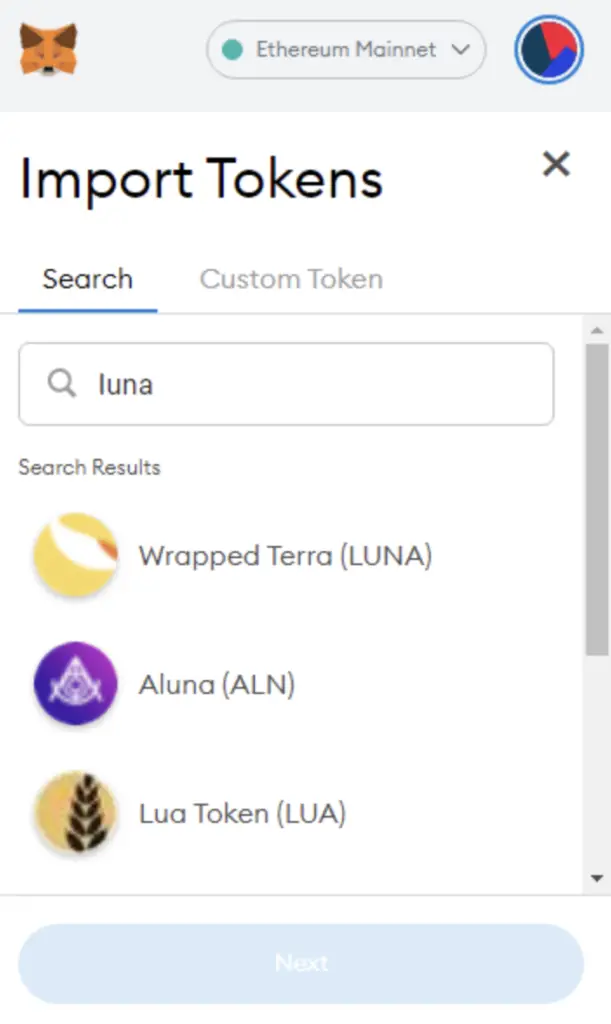
Instead, you will need to go to the ‘Custom Token‘ section.
Copy the Ethereum contract from CoinMarketCap
For the next part, you can go to the LUNA page on CoinMarketCap.
There is a section called ‘Contracts‘, where you’ll see the Ethereum contract for LUNA when you click on ‘More’.
You can click on the contract and it will be copied to your clipboard.
This version of LUNA is Wormhole LUNA, and you can find out more about it here:
Double-check that LUNA is detected and select ‘Add Custom Token’
Once you’ve copied the Contract Address, you can paste it into the ‘Token Contract Address‘ field in Metamask.
If you pasted the correct contract address, LUNA should automatically appear as the Token Symbol.
After selecting ‘Add Custom Token‘, you will need to confirm importing LUNA one more time.
Once you’ve successfully imported LUNA to your Metamask wallet, you should see it as one of your assets under the Ethereum Mainnet.
This will allow you to view any LUNA that you’ve deposited via the ERC20 network!
How to add LUNA to Metamask on the BNB Smart Chain
The BNB Smart Chain is another network via which you can transfer LUNA to your Metamask wallet.
- Go to Metamask and ensure that you are using the BNB Smart Chain Mainnet
- Select ‘Import Tokens’, and then ‘Import Custom Token’
- Copy the BNB Smart Chain contract from CoinMarketCap
- Double-check that LUNA is detected and select ‘Add Custom Token’
Here is each step explained in-depth:
Go to Metamask and ensure that you are using the BNB Smart Chain Mainnet
The first thing you’ll need to do is to ensure that you are using the BNB Smart Chain Mainnet on Metamask.
You can use this guide on how to add the BNB Smart Chain automatically to your Metamask wallet:
Select ‘Import Tokens’, and then ‘Import Custom Token’
Once you’re on the BNB Smart Chain Mainnet, the next step will be to select ‘Import Tokens‘.
If you try to search for LUNA using the Search function, you aren’t able to import it using this method.
Instead, you will need to go to the ‘Custom Token‘ section.
Copy the BNB Smart Chain contract from CoinMarketCap
For the next part, you can go to the LUNA page on CoinMarketCap.
CoinMarketCap is one of the most reliable sites to obtain the contract address with regard to cryptocurrencies.
There is a section called ‘Contracts‘, where you’ll see the BNB Smart Chain contract for LUNA after clicking on ‘More’.
You can click on the contract and it will be copied to your clipboard.
Double-check that LUNA is detected and select ‘Add Custom Token’
Once you’ve copied the Contract Address, you can paste it in the ‘Token Contract Address‘ field in Metamask.
If you pasted the correct contract address, LUNA should automatically appear as the Token Symbol.
After selecting ‘Add Custom Token‘, you will need to confirm importing LUNA one more time.
Once you’ve successfully imported LUNA to your Metamask wallet, you should see it as one of your assets under the BNB Smart Chain Mainnet.
This will allow you to view any LUNA that you’ve deposited via the BEP20 network!
How to add Wrapped LUNA to Metamask
- Go to your Metamask wallet and ensure that you are using the Ethereum Mainnet
- Select ‘Import Tokens’, and then search for wrapped LUNA
- Confirm the addition of wrapped LUNA to your Metamask wallet
Wrapped LUNA is a bridged version of LUNA that uses the Shuttle Bridge. This is soon to be deprecated, and it is most advisable for you to use this version of LUNA only if you are sending your funds to Coinbase.
And here is each step explained in detail:
Go to Metamask and ensure that you are using the Ethereum Mainnet
The first thing you’ll need to do is to ensure that you are using the Ethereum Mainnet on Metamask.
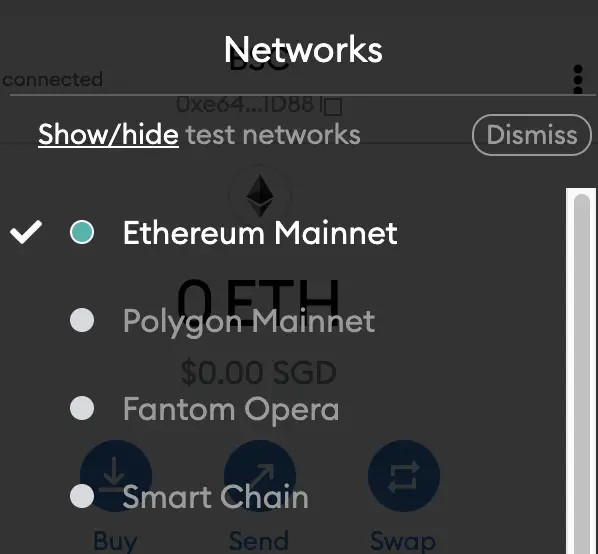
This is the default network for all Metamask wallets. However, you are also able to connect Metamask to other blockchain networks, such as:
As such, do remember to be on the Ethereum Mainnet before moving on to the next step.
Select ‘Import Tokens’, and then search for LUNA
Once you’re on the Ethereum Mainnet, the next step will be to select ‘Import Tokens‘.
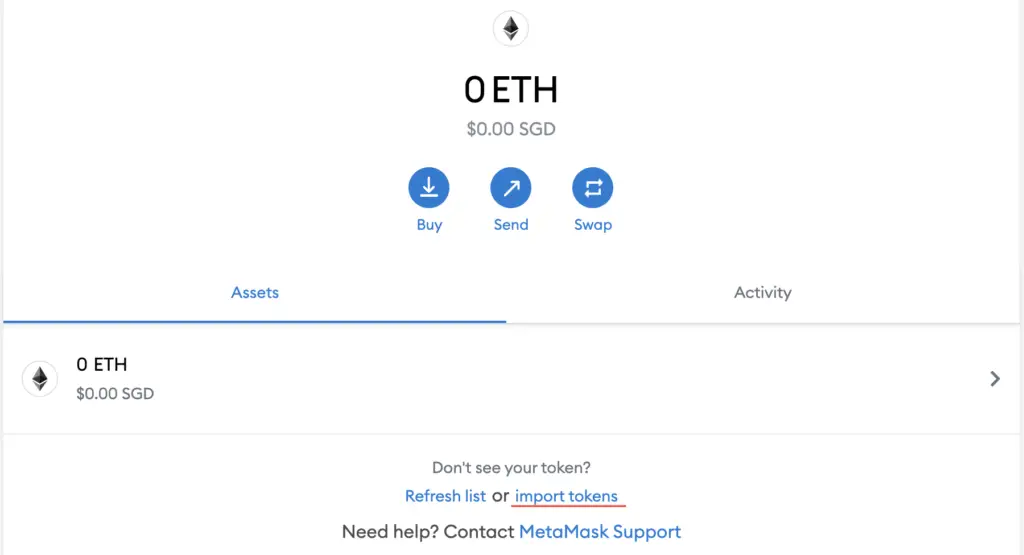
On the ‘Search‘ tab, you can search and select wrapped LUNA as the token that you wish to import.
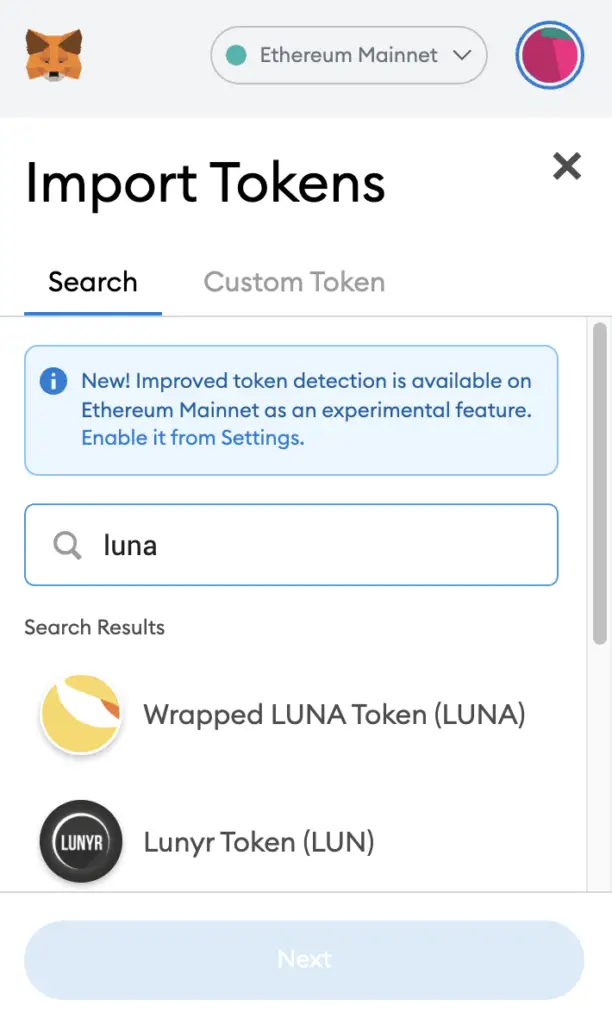
Confirm the addition of wrapped LUNA to your Metamask wallet
The last step you will need to do is to confirm importing wrapped LUNA one more time.
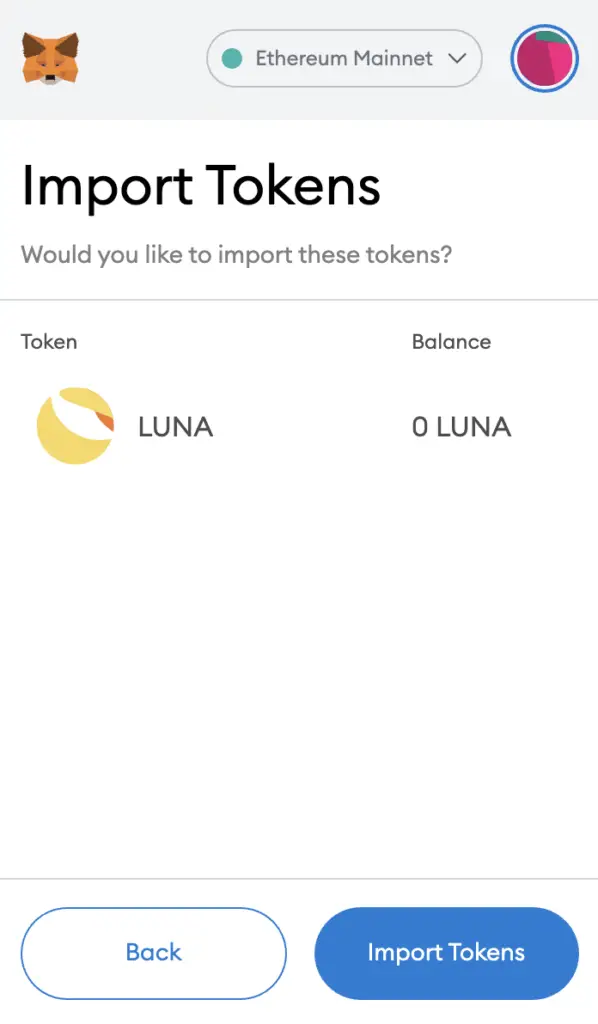
Once you’ve successfully imported LUNA to your Metamask wallet, you should see it as one of your assets under the Ethereum Mainnet.
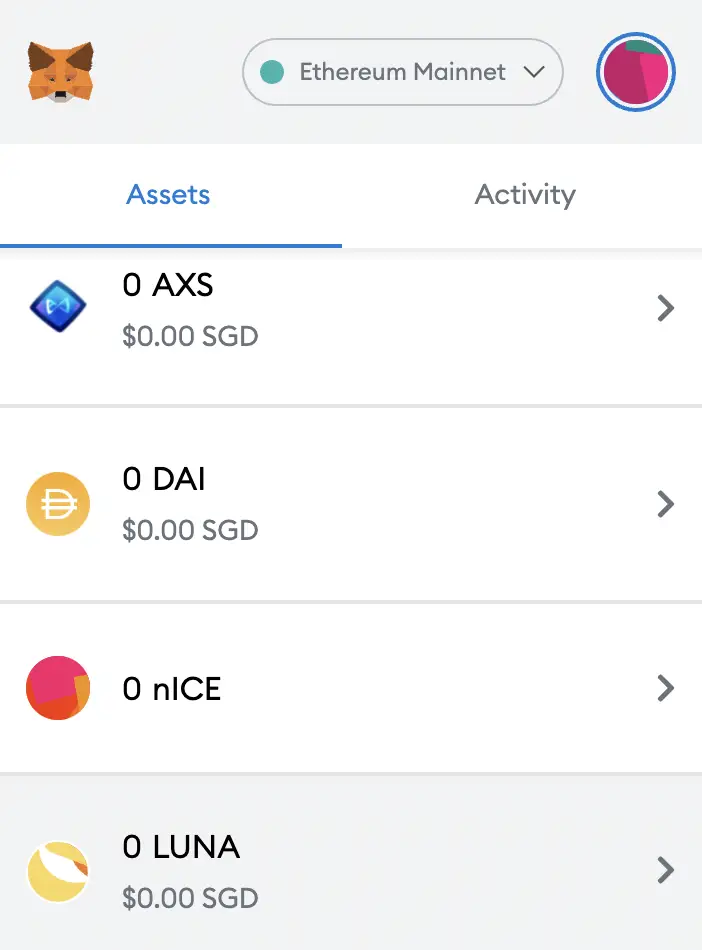
This process is similar to adding other tokens, such as RARI or MANA.
Conclusion
LUNA can be added to the ERC20, BEP20, Polygon and Avalanche networks.
Moreover, wrapped LUNA is an ERC20 token, hence you can deposit LUNA via the ERC20 network to your Metamask Wallet.
You won’t able to add native LUNA which is found on the Terra network, since Metamask does not support this network.
This is because the Terra network is not EVM-compatible.
If you are looking for a decentralised wallet to send native LUNA to, you can consider either the Terra Station wallet, or the Keplr Wallet.

Do you like the content on this blog?
To receive the latest updates from my blog and crypto in general, you can follow me on Telegram, YouTube and Twitter.
Are you passionate about personal finance and want to earn some flexible income?
Here’s How You Can Add the Terra (LUNA) Network to Your MetaMask Wallet
Luna has been the talk of the town for over two months. With the fall of the Terra ecosystem in May, Terra and Luna were trending across social media. Now the storm seems to have settled as we don’t hear the name quite often.
Thousands of users lost millions of dollars over a span of a few days. After the revival plans and the launch of the new Luna token, Terra didn’t display the same growth as they had hoped. But still, many users haven’t let their hopes down on Terra, as several users are still buying and transacting with Luna.
Even though users can buy, hold, and transfer on several crypto exchanges, many users might still want to control their Luna in wallets like MetaMask. So if you are one of those users, here’s a step-by-step guide to easily do it.
Add Terra(LUNA) to your MetaMask wallet
The revived and new LUNA is not yet supported by the MetaMask wallet, so you have to wait a bit until there is a new update or release from the team. But you can make your way into doing it by following some simple steps.
 Source: StormGain
Initially, what you have to do is use the Terra Bridge to add Luna to MetaMask:
- Connect your wallet by navigating to the Terra Bridge.
- Now you have to choose your blockchain. In the case of MetaMask, you can select Ethereum or BSC.
- Now enter the MetaMask wallet address that you have on that network and send the required amount of Luna to it.
- Once the transaction is successful, go ahead and click on “Import tokens” from the “Custom tokens” bar.
- Add the Custom token by entering the contract address of LUNA and the symbol.
While it seems like a long process, once you hop on it, it will be done in a jiffy. The same steps can be followed to add the old Luna Classic token to your wallet. All you have to do is replace the contract address with that of Luna Classic and you are good to go.
Как добавить luna в метамаск
Reddit and its partners use cookies and similar technologies to provide you with a better experience.
By accepting all cookies, you agree to our use of cookies to deliver and maintain our services and site, improve the quality of Reddit, personalize Reddit content and advertising, and measure the effectiveness of advertising.
By rejecting non-essential cookies, Reddit may still use certain cookies to ensure the proper functionality of our platform.
For more information, please see our Cookie Notice and our Privacy Policy .