How to Allocate More RAM to Terraria
Before elaborating on how to allocate more RAM to Terraria, I would like to inform a couple of situations you may need to consider.
In general, Terraria does not consume too much memory. It is a 32-bit based game. This means the game will perform well at 4GB RAM.
But when you are willing to run mods with Terraria then it will need more RAM. You can allocate more RAM by using tModLoader.
In this article, the necessary steps are provided that you can follow to allocate more RAM to Terraria. So, without any further ado, let’s begin.
Please enable JavaScript
Table of Contents
Why You Need to Allocate More RAM to Play Terraria
It is totally fine when you run Terraria on its own. But, if you try to run various kinds of mods in Terraria, you may face trouble.
These mods can add quality and life improvement features in Terraria. But these are not created by the developers. Basically, the related community offers several mods for Terraria.
So, if you want to get the advantage of mods to play Terraria, you will have to allocate more memory.
Add tModLoader to Steam Library
Before applying the memory allocating process, you have to install tModLoader 64-bit through Steam. It is the initial work that you will need to do before allocating more RAM. To do so, you can follow the below steps.
Step 1
Open Steam and tap the LIBRARY tab.
Step 2
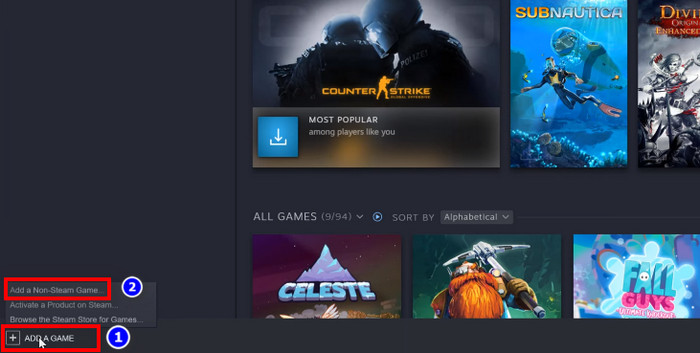
Look at the left bottom. Then find and expand the ‘Add a Game‘ section.
Step 3
Next, you have to click on the ‘Add a Non-Steam game‘ option and add the tmodloader64bit.exe file.
After adding the dedicated game’s mod manager tModLoader, you will be able to use all kinds of mods. To use these mods with Terraria, you have to allocate more memory.
How to Allocate More RAM to Terraria
In a word, you need to modify the Terraria file to a 64-bit version to allocate more RAM.
To do so, you have to execute some installations and drag some files to existed Terraria folder.
Step 1
Download the tModLoader directly from the internet. It’s totally out of cost.
Step 2
Unzip the tML64 file inside the Terraria folder location.
Step 3
Open Steam and navigate tModLoader folder from LIBRARY.
Step 4
Next, right-click on tModLoader first. Then, expand the ‘Manage’ section and click on the ‘Browse local files’.
Step 5
While the tModLoader folder appears, you will have to copy all the files from the unzipped file and paste them inside the existing file location. Here, you need to select ‘replace all files’ to finish the dragging.
Finally, you have to check the change, is it working or not? To check, you need to launch Terraria through tModLoader. It may take time to load the game properly. After that, the game will be running 64-bit smoothly without having memory trouble.
So, this is how you can allocate more RAM or memory.
Alternative Way
If you are not willing to install third-party software or want avoid this hassle then you can allocate more RAM to Terraria from the Task Manager. To do so –
- Step 1: Press Ctrl + Shift + Esc and launch Task Manager.
- Step 2: Click on Details tab and look for Terraria.exe file.
- Step 3: Now, right-click on that file and then click on Set priority.
- Step 4: Now, select Realtime and save the change.
Now, more RAM will be allocated to Terraria.
[Bonus Info] System Requirement of Terraria
OS: Windows 10, 8, 7, Vista, XP
Processor: 2.0 GHz.
Memory/RAM: 2.5GB.
Video Card: 128MB Video Memory
DirectX®: 9.0c or Greater
Frequently Asked Questions
Does Terraria take a lot of RAM?
No, it doesn’t take a lot of memory. It will need 1 to 2 GB to run smoothly.
How much RAM does Terraria server use?
If you are willing to use Terraria server with 10 or more players then you should have at least 1 to 2 GB of RAM.
Final Words
I assume that you will capture the full process of how to allocate more RAM to Terraria after exploring the article. So, running mods in Terraria will not be a matter to you from now. You can try to allocate RAM from task manager but if you fail to do so then you can use tModLoader. If you have encountered any issue while following aforementioned steps, don’t let us know in the comment box.
Как увеличить память для террарии

При игре с модами через tModLoader объем допустимой памяти для модов составляет 4 ГБ, в гайде подробно описано как задействовать всё ОЗУ вашего ПК.
Так же это работает и для мультиплеера.
When playing with mods via tModLoader, the amount of allowed memory for mods is 4 GB, the guide describes in detail how to use all the RAM on your PC.
This also works for multiplayer.
 1
1
 1
1
 1
1
 4
4
 2
2
 2
2
 1
1
 1
1
 1
1
 1
1

| 7,148 | уникальных посетителей |
| 101 | добавили в избранное |

Террария 32-битная игра и соответственно ModLoader тоже сделан под 32. В 32 битной системе нельзя задействовать больше 4 ГБ оперативной памяти.
Мы же с вами будем апать tModLoader в 64-разрядную версию.
Terraria is a 32-bit game and, accordingly, ModLoader is also made for 32. In a 32-bit system, you cannot use more than 4 GB of RAM.
We are going to up tModLoader to the 64-bit version.
——————————————————————————
Ссылки и пути установки\Links and installation paths::
Вам ведь нужны пруфы? Вот вам пруфы\You need proofs, right? Here are the proofs:
1. Переходим на гитхаб разработчика и скачиваем 64-битную версию лоадера.
Находится внизу страницы, нас интересует tModLoader64bit.zip
Go to the developer’s github and download the 64-bit version of the loader.
Located at the bottom of the page, we are interested in tModLoader64bit.zip
2. Открываем путь игры и закидываем поверх файлы из архива с заменой.
У нас будет два новых ярлыка (выделены на скрине)
Open the path of the game and throw over the files from the archive with the replacement.
We will have two new shortcuts (highlighted in the screenshot)
2.5 Если у вас видеокарта AMD, советую после скачать tmodloader_x64_vulkan.zip и закинуть поверх tModLoader64bit. Производительность заметно улучшится.
If you have an AMD graphics card, I advise you to download tmodloader_x64_vulkan.zip afterwards and put tModLoader64bit over it. The performance will improve markedly.
3. Добавляем tModLoader64bit в библиотеку стим, для этого нажимаем в стиме внизу слева "Добавить игру" — "Добавить стороннюю игру" и указываем путь к tModLoader64bit.
Add tModLoader64bit to the steam library, for this, click in the Steam at the bottom left "Add game" — "Add a third-party game" and specify the path to tModLoader64bit.
4. Запускаем tModLoader64bit. И смотрим в левый нижний угол, если вы видите следующее:
Launch tModLoader64bit. And look in the lower left corner if you see the following:
Значит у тебя все получилось, похлопай себе
И, пожалуйста, не забудь поставить оценку этому гайду.
So you did it, give yourself a pat
And, pls, don’t forget to rate this guide.
How to Allocate More RAM to Terraria [Fastest Methods 2023]
Terraria is a popular open-world action-adventure game among gamers worldwide. It gains more popularity because Players can utilize a variety of mods in Terraria to enhance their game’s playing experience.
However, many gamers experience crashes while using these mods, and the primary cause of the crash is the game running out of RAM.
So, in this article, I’ll show the quickest ways to prevent it from crashing by assigning more RAM to Terraria.
- How to Allocate More RAM to Terraria
- Method 1: Allocate RAM Via Task Manager
- Methods 2: Using tModLoader
How to Allocate More RAM to Terraria
To assign more RAM to Terraria, open the game. Launch Task Manager and navigate to the Details tab. Right-clicking the Terraria game to Set Priority from the options. Select Change Priority in the verification box after selecting Realtime priority from the sub-menu.
However, before you assign extra RAM to Terraria and get an fps boost, make sure you have enough memory to match the Terraria system requirements and memory usage. You can use these methods if your memory meets Terraria’s memory requirements.
Note: Terraria requires a minimum of 2 GB of memory, and a maximum of 4 GB. Users must have more than 4GB of RAM to allocate extra memory to the game.
Here are the methods to allocate more memory to Terraria:
Method 1: Allocate RAM Via Task Manager
Users can use the Task Manager to allocate more memory to Terraria. You must first open the game before assigning more memory to it.
Here are the steps to allocate RAM via Task manager:
- Press the Win key to open the Start menu.
- Type Task manager in the search bar.
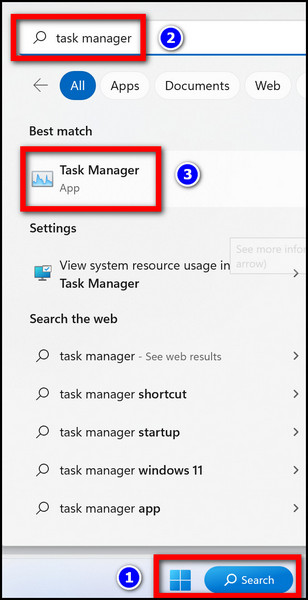
- Open Task manager.
- Go to the Details tab.
- Find Terraria.exe file.
- Right-click on the file and choose Set priority.
- Select Realtime from the Set priority option.
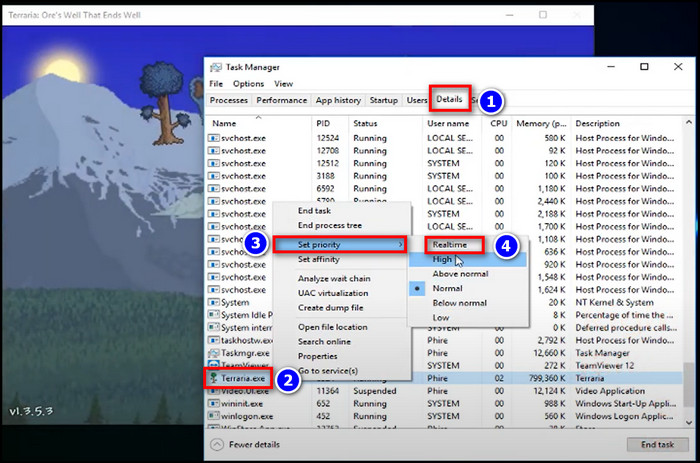
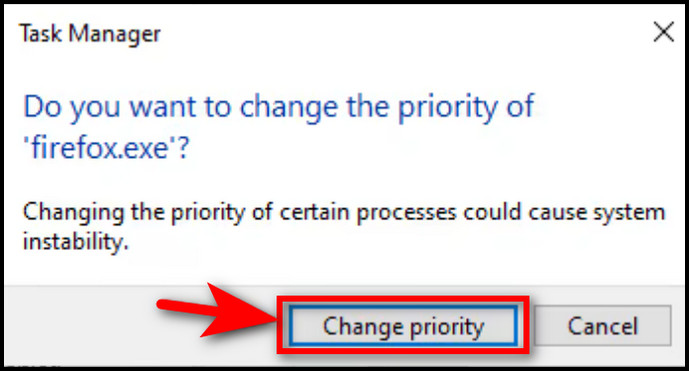
The game will be allocated with more RAM. after you pick Change Priority in the confirmation window.
Also, turn off unnecessary background apps so they don’t consume memory or any other resources.
Methods 2: Using tModLoader
tModLoader (tML) is a free modification tool that helps Terraria operate efficiently with a variety of mods. It also allocates additional RAM and mod updates to the game when needed, preventing it from crashing.
Note: Users can use tModLoader to download modules from their library, known as the Mod Browser, as well as get mod updates and contribute their own modifications to the Mod Browser.
Here is the process of using tModLoader:
- Download tModLoader from the website.
Note:Depending on your operating system, download a 32-bit or 64-bit version of tModLoader. If your operating system is 32-bit, get the 32-bit version of tModLoader; otherwise, download the 64-bit version.
- Unzip the tML64 file and put the file in the game folder Terraria location.
- Open the Steam app.
- Click on Add Game and select Add a Non-Steam game option.
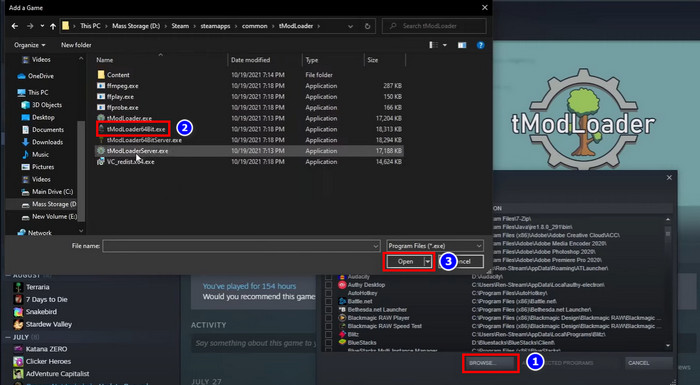
- Choose Browse from the add game option.
- Select tML64.exe from the game folder and click Open.
- Press ADD Selected Programs under the add game option.
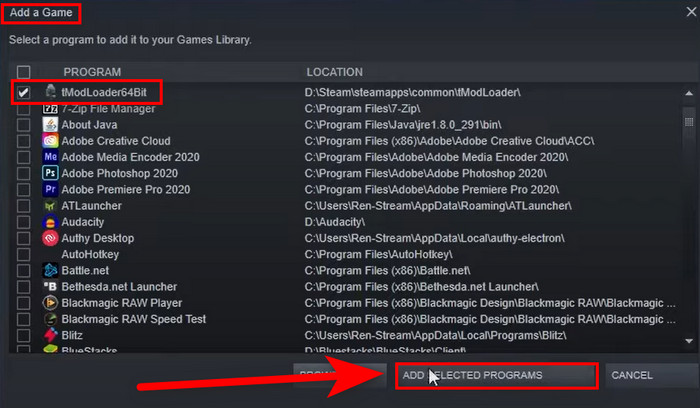
tModLoader is now in your Steam library. When you run Terraria, it will automatically launch tModLoader in the background.
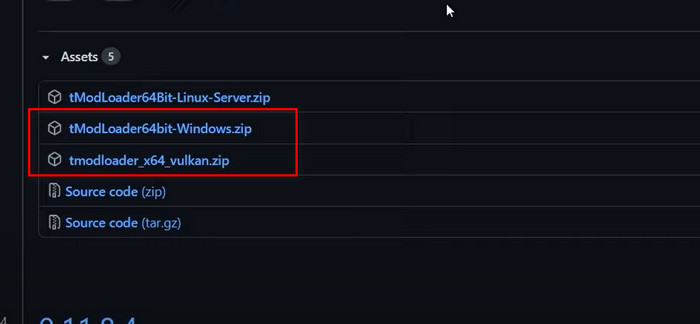
Note: This procedure is for Intel processor users. If you are an AMD user, you must download both the tModLoader64bit-Windows.zip and the tModLoader_64_Vulkan.zip files from the website and carefully go through the instructions above.
By implementing the above techniques, you can increase the allocation of memory resources for Terraria, as well as enhance the performance of Warzone and Steam games by allocating additional RAM. This will result in improved FPS across these gaming platforms.
Conclusion
Memory management is a significant issue in various games since the game server requires more memory to assign numerous players concurrently. Terraria, being a multiplayer open-world game, exhibits the same symptoms when it is heavily moded or has a large number of players on a server.
Hopefully, after applying the methods from my article, your issue has been repaired. You may now assign extra RAM to your game and enjoy any modifications without any slowdown or crashes.
If you have any questions or feedback, feel free to comment in the section below.