MOFI Router Setup – Step-By-Step Guide
One of the most significant reasons behind using MOFI broadband routers is their support for 3G, 4G, DSL, satellite, and LTE wireless networks. Hence, you can insert the SIM card into the router to establish a secure Wifi connection other than the conventional satellite and DSL connection.
Read the following guide to learn how to set up a MOFI network router without professional assistance.
Table of Contents
Is MOFI 4500 a Router and a Modem?
The MOFI4500 4GXELTE network is a multi-functional router that supports 3G, 4G, and LTE mobile wireless to offer a stable and high-speed connection. Also, the users can enjoy the data transfer rate of up to 300 Mbps thanks to the IEEE 802.11 b/g/11 wireless standards.
To ensure better coverage and throughput, the device has two transmitters and two receivers 5dBi detachable antennas featuring multiple-input multiple-output (MIMO) technology.
Finally, the auto fail-over feature ensures a consistent Internet connection by supporting the cellular and DSL connection. For instance, if the DSL connection fails, the cellular connection takes over and reverts once the DSL connection restores.
The MOFI4500 4GXELTE comes with an RJ 45 network cable, power adapter, Wi-Fi, cellular antenna, and a start guide.
How to Setup a MOFI Network Router?
Before discussing the setup, let’s understand what the lights on the MOFI network router represent:
- Power/Boot status – Blinks when the MOFI network router starts and turns solid.
- Internet – The LED turns on when Internet access or it remains off.
- Wifi – The blinking light indicates wireless traffic, while fast blinking means the device is in recovery mode. If the wireless is disabled, the Wifi LED remains off.
- WAN – The light remains off if there isn’t any modem connection and ON if the device is connected to a DSL, cable, or satellite.
- Ethernet – The LED turns on to indicate an active Ethernet device and off when no device is connected via a wire. If the light blinks, the connected wired device is receiving or transmitting data.
Now, you need the following information to begin the MOFI network router setup:
- The IP address of the MOFI network router
- Default username and password
The good news is you can find the information in the manual. Usually, the default gateway IP address is 192.168.1.1, the default username is the root, and the default password is admin. Similarly, the default subnet mask is 255.255.255.0, and the default DNS server is 192.168.1.1.
MOFI Web Configuration Using Wifi Password
Next, proceed to the following steps after connecting the MOFI network router to a computer using an Ethernet cable or wireless connection:
- First, open your web browser and type the default IP address, 192.168.1.1, in the address bar to open the wireless router login page.
- Next, you must enter the default login credentials on the web page to proceed to the router management portal.
- You’ll see several Wifi settings on the left sidebar, such as Network, General WPS, DHCP, etc.
- Next, choose the “Network” option and click on the “Wifi” option.
- You can configure the wireless connection on the Wifi setting page, such as username, password, Network name, Wifi channel, network mode, bandwidth, and other settings.
- To ensure the best encryption and Wifi security, you should select “Force AES” against “Encryption Type (Cipher).”
- Select ” WPA-PSK ” from the “Encryption” drop-down to secure your Wifi network. Also, you need to set the wireless passkey between six to 63 characters.
- It would be best if you didn’t change the “Wifi Channel” usually. However, you can use channels 1, 6, or 11 if some channels are more congested.
- Finally, press the “Save” button to confirm your settings. You can now try to connect different devices to the wireless MOFI network.
Why Is MOFI Network Not Connecting to the Internet?
If the MOFI network router is non-responsive or dropping Wifi connections, you can reset it to resolve the issue:
- In a 30-30-30 reset, you must long-press the reset button for 30 seconds using a paper clip when the router is powered on.
- Next, unplug the MOFI network router from the power source while pressing and holding the reset button for 30 seconds.
- Finally, you can turn the router while still long-pressing the reset button for 30 seconds.
- It takes 90 seconds, during which you first power off the router, then off, and finally switch it on again while you keep on holding the reset button.
- The above process restores the factory default settings meaning you need to configure the MOFI network router again.
Also, you can try the following troubleshooting methods to connect the MOFI network router to the Internet:
- Open the MOFI network router portal on the computer and click the “Check Signal Strength” button to check the signal strength and quality. For instance, the -90 signal strength is better than -100, while the signal quality of -7 is undoubtedly higher than -17.
- You can update the router’s firmware by selecting the option “Remote Update” from the “System” option on the left menu.
Conclusion
The key takeaway of the above guide is to assist you in setting the correct wireless settings to create a secure and encrypted Wifi network within your home. Also, the MOFI network router web portal allows you to customize the Wifi settings whenever you want.
Suhail M
Suhail is a Jack Of All Trades, a Master Of Networks. He is a Network Engineer and specializes in solving complex network issues.
 MOFI4500-4GXELTE
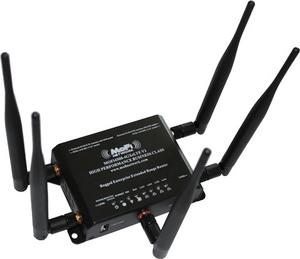
The MoFi Network MOFI4500-4GXELTE router has Gigabit WiFi, 4 100mbps ETH-ports and 0 USB-ports.
MOFI4500-4GXELTE router specifications (specs)
Hard reset instructions for MoFi Network MOFI4500-4GXELTE
If your MOFI4500-4GXELTE router is not working as it should, dropping connections or not being responsive, you should first do a reset of the router to see if the problems persist. Other scenarios where you might want to reset your router is if you’ve forgotten the password or misconfigured it and can’t get access anymore.
Your can reset your MoFi Network MOFI4500-4GXELTE in the following way(s):
The 30-30-30 reset
- When router is powered on, press the reset button and hold for 30 seconds. (Use a paper clip or something sharp)
- While holding the reset button pressed, unplug the power of the router and hold the reset button for 30 seconds
- While still holding the reset button down, turn on the power to the unit again and hold for another 30 seconds.
This process usually works for resetting any router to it’s factory setting.
Note: It is worth reading more about how to reset routers with the 30 30 30 reset and what the risks and considerations are when resetting your router this way, instead of just rebooting it.
Default factory settings for MoFi Network MOFI4500-4GXELTE
If you have performed a reset of your MOFI4500-4GXELTE device or not changed the defaults, you should be able to access it with the following settings:
Default Gateway IP: 192.168.1.1 MoFi Network login instructions
Default username: root
Default password: admin
Default subnet mask: 255.255.255.0
Default DNS server: 192.168.1.1
Note: If you are using the default settings you should change them to increase security and prevent unathorized access to your network.
How to login to the MOFI4500-4GXELTE
To login to the MOFI4500-4GXELTE router and change the settings, you can follow these steps:
- Make sure you are connected to the router’s network, either by Wi-Fi or ethernet cable.
- Open your browser and visit http://192.168.1.1
- You should be prompted with a login dialogue.
- Enter the username: root and the password admin
Note: If you have already changed the password use that instead. - You will now be logged in. If you haven’t yet changed the defaul password, we recommend that you change it first thing you do after logging in.
If these instructions don’t work for your router, you can always try a factory reset to get the default, or try some other common MoFi Network credentials, as they can usually be shared across models/variants.
Support
This article provides a quick guidance on MoFi Network MOFI4500 Router setup and configuration to connect it to Swift Navigation GNSS receiver and obtain corrections from Skylark or a third party RTK correction service.

Fig 1. MOFI4500-4GXeLTEv2 Router
General Information
The MoFi Network Router MOFI4500-4GXeLTEv2 does not include internal cell modem. For the Internet access it can either operate as a WiFi client and connect to a WiFi hotspot (in the cell phone for example) or work with cell modem USB dongle plugged directly to the router.
MoFi Network (http://mofinetwork.com) manufactures also other routers with built-in cell modems but they were not tested by Swift Navigation.
At Swift we use MoFi routers with Verizon USB cell modem dongles in several test setups with very good results.
The router has four Ethernet RJ45 ports.
Hardware Setup
Recommended Piksi Multi / Duro setup is depicted in the diagram below.

Fig 2. Hardware Setup
The MOFI4500 router can be used as a Cellular Internet Gateway and connect to Piksi Multi Evaluation Board / Duro directly.
Piksi Multi Setup Example
Swift Navigation uses following setup to connect Piksi Multi to Internet.

Fig 3. Piksi Multi Setup Example
Setup description:
- GNSS antenna
- TNC-SMA GNSS antenna cable
- SMA-MMCX antenna cable adapter
- 12V Barrel Jack to cigarette lighter power cable
- 2.1mm/5.5mm Barrel Jack power cable splitter
- USB drive for on-board data recording and firmware upgrades
- Piksi Multi Evaluation Board with Piksi Multi GNSS receiver module
- MoFi Network router MOFI4500-4GXELTE
- RS-232 USB adapter for real-time control, monitoring and off-board data recording
- Verizon 4G/LTE USB dongle (Pantech UML295 or UML290)
- Ethernet cable
MOFI4500 Basic Setup
- Plug-in the activated USB cell modem dongle before power up the router.
- MOFI4500 uses 12 V DC supply. It can be powered from the same power source as Piksi Multi / Duro.
- It takes about a minute for router to boot up.
- As a factory default router is configured as WiFi hotspot and is accessible at 192.168.10.1.
- With correctly activated cell modem dongle no any changes in router configuration are required. Just power system up and wait for router to boot up. The INTERNET LED on router will lit green when router has access to the Internet.
Piksi Multi / Duro Basic Setup
- Connect to Piksi Multi / Duro over the serial interface using Swift Console and configure Ethernet with dynamically assigned IP address:

- Connect Piksi Multi / Duro Ethernet port to the MoFi router. After a couple of seconds Piksi / Duro red LED should lit solid indicating active connection to the Internet.
- Assigned IP address can be seen on Swift Console Advanced tab -> Networking sub-tab after pressing Refresh Network Status button:

Review: MOFI4500-4GXeLTE by MoFi Networks (Mobile Routers)
Canadian router manufacturer MoFi originally launched the MoFi 4500 line in August of 2015, with an optional integrated cellular radio.
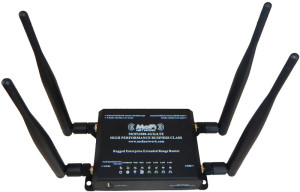
The cellular-integrated MoFi 4500 models feature two Wi-Fi and two cellular antennas.
MoFi routers provide a local Wi-Fi and Ethernet LAN network, and support tethering to a cellular hotspot or USB modem to share your cellular connection.
MoFi also supports direct USB tethering to Android phones and was the first router to support direct iOS smartphone tethering (a feature now matched by WiFiRanger).
With an integrated cellular radio included with many MoFi versions, the tiny MoFi box can do away with the need for a separate cellular hotspot entirely.
This packs a ton of capability into a small metal shell for the price point.
The basic MoFi router has remained essentially the same since 2015, but MoFi has upgraded the integrated cellular radio over time. The most recent version is the SIM7 version — supporting T-Mobile Band 71 and AT&T Band 14.
While MoFi looks great on paper — the actual hands-on experience is, at best, challenging.
Product Variations
MoFi offers a range of models on their website, with often confusing product names. The two of most interest to our audience are the SIM4 and SIM7 of the MoFi4500-4GXeLTE line-up.
Additionally, MoFi offers a Combo version of these routers, which basically includes a higher gain screw-in paddle antenna for a few extra bucks. If you’re intending to use roof-mounted antennas with your MoFi, you can skip the upgrade.
MoFi4500-4GXeLTE SIM4
The SIM 4 is the original version released and sports a Cat-6 modem with carrier aggregation. It has support for all of the carriers but lacks Band 71 for T-Mobile and Band 14 for AT&T.
Specifications
- Model: MoFi4500-4GXeLTE SIM4
- Base Technology:WE826 Router
- Router Specs:
- # of Connected Devices: Not specified
- Wi-Fi Router:
- Wi-Fi Standard: Wi-Fi 4 (802.11n) — 2.4 GHz
- Max Theoretical Wi-Fi Speed: 300 Mbps (2.4 GHz)
- Wi-Fi Antenna: 2x RP-SMA/Female Antenna Port, 5dBi Antennas Included
- Wi-Fi as WAN: Yes (see details in review below)
- Claimed Wi-Fi Range: Not specified
- Guest Wi-Fi Network: Yes
- Cellular Modem: Single 4G
- Supported Networks and Bands: Verizon, T-Mobile, AT&T, Sprint, Global
- LTE Bands: 1, 2, 3, 4, 5, 7, 8, 12/17, 20, 25, 26, 30, 41
- 2G/3G: HSPA+ 850/1900/2100MHz Global roaming supported
- MIMO Support: 2×2
- LTE Performance Category: Cat-6 (Max Theoretical Speed: 300Mbps Down / 50Mbps Up)
- LTE-Advanced Carrier Aggregation: 2x Download
- Cellular Antennas: 2x SMA/Female Antenna Ports, Basic 5dBi Indoor Antennas Included with SIM4 version, premium antennas included with Combo upgrade
- SIM Slot: 1x Mini-SIM
- SIM4-COMBO V3 — $349.99
- SIM4-VEHICLE-COMBO V3 — $374.99
- SIM4-GPS COMBO V3 — $399.99
MoFi4500-4GXeLTE SIM7
The SIM7 was released in Spring 2020 with support for T-Mobile’s Band 71 and AT&T’s Band 14. However, the modem is only a Cat-4 which lacks carrier aggregation and support for Sprint bands. If you need Band 71 or Band 14, then this is the model to get — but it does come with compromises in performance.
Specifications
- Model: MoFi4500-4GXeLTE SIM7
- Base Technology:WE826 Router
- Router Specs:
- # of Connected Devices: Not specified
- Wi-Fi Router:
- Wi-Fi Standard: Wi-Fi 4 (802.11n) — 2.4 GHz
- Max Theoretical Wi-Fi Speed: 300 Mbps (2.4 GHz)
- Wi-Fi Antenna: 2x RP-SMA/Female Antenna Port, 5dBi Antennas Included
- Wi-Fi as WAN: Yes (see details in review below)
- Claimed Wi-Fi Range: Not specified
- Guest Wi-Fi Network: Yes
- Cellular Modem: Single 4G
- Supported Networks and Bands: Verizon, T-Mobile, AT&T
- LTE Bands: 2, 4, 5, 12/B17, 14, 66, 71
- 2G/3G: Not Yet Known
- MIMO Support: 2×2
- LTE Performance Category: Category 4 (Max Theoretical Speed: 150Mbps Down / 50Mbps Up)
- LTE-Advanced Carrier Aggregation: No
- Cellular Antennas: 2x SMA/Female Antenna Ports, Basic 5dBi Indoor Antennas Included, premium antennas included with Combo upgrade.
- SIM Slot: 1x Mini-SIM
- SIM7-COMBO V3 — $309.99
- SIM7-VEHICLE-COMBO V3 — $334.99
MoFi4500-4GXeLTE SIM8
The SIM8 was released in Spring 2021 with support for new LTE bands 14, 66, and 71. It also had a Cat-7 modem that supports carrier aggregation, and MoFi describes this model as the ‘best of’ the SIM4 and SIM7 versions. This modem will be the basis of their upcoming 5500 series as well.
Specifications
- Model: MoFi4500-4GXeLTE SIM8
- Base Technology:WE826 Router
- Router Specs:
- # of Connected Devices: Not specified
- Wi-Fi Router:
- Wi-Fi Standard: Wi-Fi 4 (802.11n) — 2.4 GHz
- Max Theoretical Wi-Fi Speed: 300 Mbps (2.4 GHz)
- Wi-Fi Antenna: 2x RP-SMA/Female Antenna Port, 5dBi Antennas Included
- Wi-Fi as WAN: Yes (see details in review below)
- Claimed Wi-Fi Range: Not specified
- Guest Wi-Fi Network: Yes
- Cellular Modem: Single 4G
- Supported Networks and Bands: Verizon, T-Mobile, AT&T, and Sprint
- LTE Bands: 2, 4, 5, 7, 12, 13, 14, 17, 25, 26, 41, 42, 43, 48, 66, 71
- 2G/3G: Not Yet Known
- MIMO Support: 2×2
- LTE Performance Category: Category 7 (Max Theoretical Speed: 300Mbps Down / 150Mbps Up)
- LTE-Advanced Carrier Aggregation: 2x Download, 2x Upload
- Cellular Antennas: 2x SMA/Female Antenna Ports, Basic 5dBi Indoor Antennas Included, premium antennas included with Combo upgrade.
- SIM Slot: Mini-SIM (2FF)
- SIM8-COMBO V3 — $329.99
- SIM8-VEHICLE-COMBO V3 — $354.99
MoFi4500-4GXeLTE v3
The basic MoFi 4500 model without a built-in cellular radio, designed for customers who intend to tether to a USB device.
Specifications
- Model: MOFI4500-4GXELTE v3
- Router Specs:
- # of Connected Devices: Not specified
- Wi-Fi Router: Yes
- Wi-Fi Standard: Wi-Fi 4 (802.11n) — 2.4 GHz
- Max Theoretical Wi-Fi Speed: 300 Mbps (2.4 GHz)
- Wi-Fi Antenna: Not specified
- Wi-Fi as WAN: Yes
- Claimed Wi-Fi Range: Not specified
- Guest Wi-Fi Network: Not specified
News, Videos & Status
MoFi has provided us with both a basic MoFi 4500 and the universal cellular SIM4 model, and we tested them in a range of locations and situations. We have not tested the newer cat 4 SIM7 model that supports Band 14 and 71.
We’ve shared our in-depth testing notes with our members in more detail below, and in our testing notes:
March 2019 Update: After hearing multiple recent reports of improvements in the MoFi stability and firmware, we put our SIM4 unit back into testing for re-analysis. Our review below remains unchanged.