How To Remove A Token From Metamask In 5 Steps
To get any token on your Metamask wallet on the extension or mobile app, you have to either manually add the token to your wallet using its contract address or via the Metamask automatic detection feature which works for tokens on the Ethereum network.
If you have added a bunch of tokens to your wallet on different networks, things might start to get a bit confusing, especially for tokens that have lost a lot of value or those with 0 balances.
To solve this issue, you can remove these tokens from your Metamask wallet, and just like adding a token to your Metamask wallet, removing a token from Metamask is a fairly easy process.
In this guide, you will learn how to remove a token from Metamask. The article includes guides on how to remove tokens from both the Metamask extension and the Metamask mobile app for iPhones and Android devices.
How To Remove A Token From Metamask Quickly
- Launch Metamask and unlock your wallet.
- Select the token to be removed.
- Click on the 3-dot menu icon.
- Select [Token details].
- Click [Hide token].
How To Remove A Token From Your Metamask Wallet (Guide With Pictures)
If you have a bunch of tokens added to your Metamask wallet that you don’t need any longer, you can simply remove them.
Removing a token from Metamask only hides the token from the list of available balances on your wallet and it doesn’t actually “delete” the token’s balance from your wallet.
If want to view the token again, you can re-add the token to your wallet using its contract address.
To remove a token from Metamask, simply select the token from the list of tokens that have already been added to your wallet. After that, click the 3-dot menu icon and select Token details and click Hide token on the next page.
Below is a step-by-step guide with screenshots showing how to remove tokens on Metamask.
Step 1: Launch Metamask and unlock your wallet.
Open the Metamask extension by clicking on the Metamask logo in the extensions area of your browser then enter your account password to unlock your wallet.
If you are locked out of your wallet, you can simply reset your Metamask password.
Step 2: Select the token to be removed from the list of available tokens.
Next, select the token you want to remove from the list of available tokens on your wallet. You can only select one token at a time.
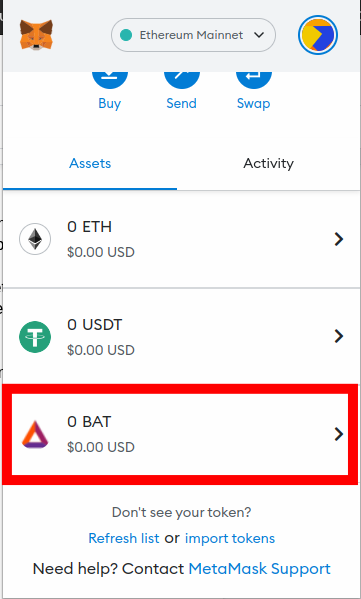
If you can’t find the token you want to remove, then you might want to switch to the correct network on Metamask where the token is on.
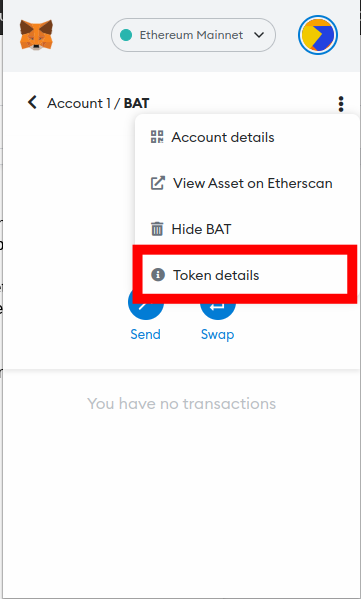
Step 3: Click the 3-dot menu icon.
Now, click on the 3-dot menu icon which is on the top right corner of the new page on Metamask.
Step 4: Select [Token details] from the menu options.
After clicking the menu icon, you should see a pop-up menu with a list of quick navigation items. Select [Token details].
Step 5: Click [Hide token].
On the Token details page, simply click on [Hide token].
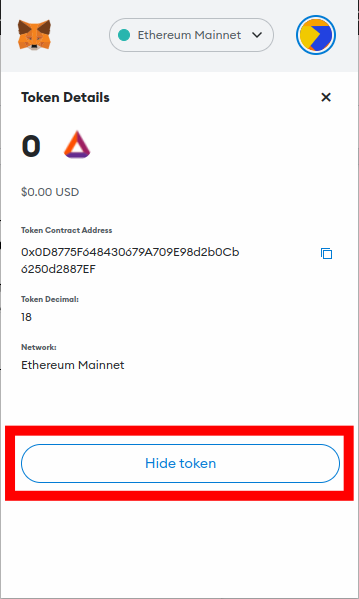
Now, select [Hide] on the confirmation dialog to remove the token from your wallet.
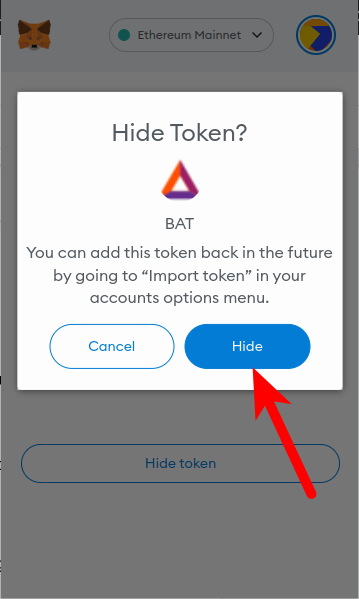
With this, you have successfully removed a token from your wallet on Metamask. You can repeat this process for all the tokens you want to remove from Metamask and it works across all networks on your wallet.
How To Remove A Token From The Metamask Mobile App
If you use Metamask solely on your mobile device, then the process of removing a token from your wallet on the Metamask mobile app is quite different from how it’s done on the Metamask extension – it is easier.
To remove a token from the Metamask mobile app for Android or iOS, follow the quick guide below.
Step 1: Open the Metamask app and unlock your wallet.
Open the Metamask mobile app on your phone by tapping on the Metamask app logo then unlock your wallet using your pin code.
If you have enabled biometrics authentication on your account on the Metamask app, you should be able to unlock your wallet using any of the available biometrics authentication methods on your device – FaceID, Fingerprint or Face Unlock.
Step 2: Long press on the token to be removed.
After unlocking your wallet, you should see the Metamask home screen with a list of tokens that have already been added to your wallet.
Long press on the token you want to remove until you see a confirmation menu.
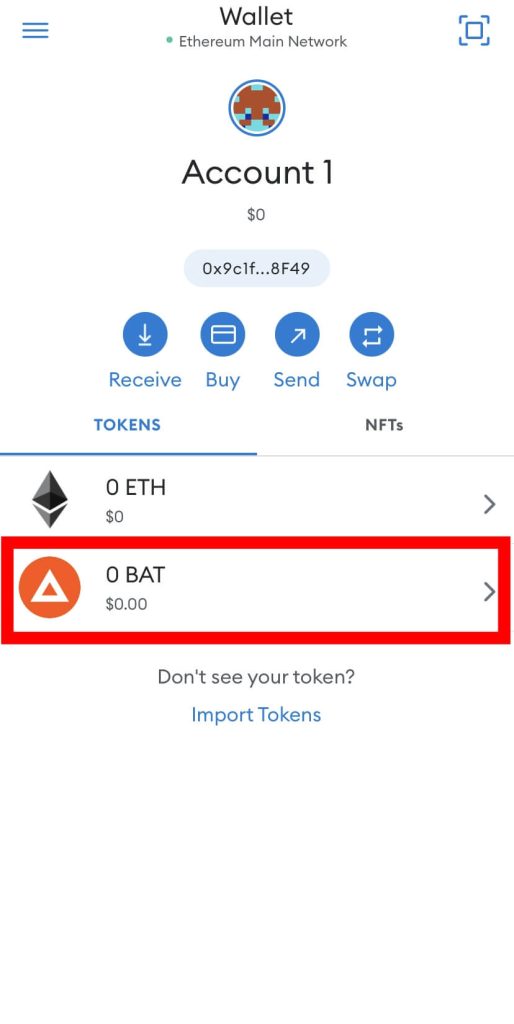
Step 3: Select [Hide] from the options.
Finally, select [Hide] from the menu options to remove the token from your wallet on the Metamask mobile app.
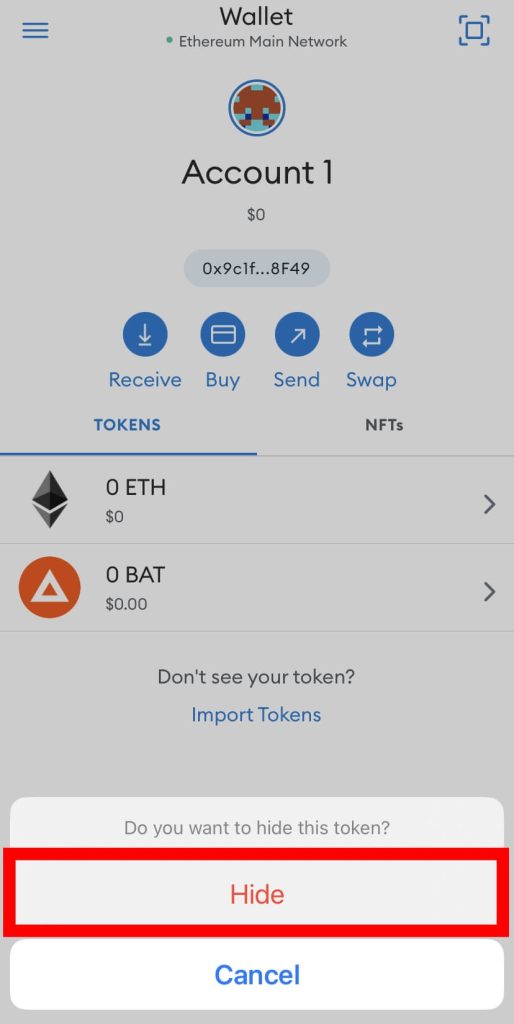
And with that, you have successfully removed a token from your wallet. You can repeat this process for all the tokens you want to remove from your wallet on the Metamask app.
Wrapping Up
Removing tokens from Metamask is an easy and concise process. Before attempting to remove a token from your wallet, ensure your wallet is connected to the correct network.
Now, simply select the token from the list of available tokens then click on the menu icon and select Token Details. On the token details page, click Hide token to hide the token on your wallet.
On the Metamask app, you can long press on the token you want to remove and hit Hide to remove the token from your wallet.
That will be it for this guide. If you were searching for a way to remove coins on Metamask, we hope you found this article helpful.
Срочно: WanChain раздает 200 USDT. Узнайте как получить за 3 минуты!
После завершения этих шагов выбранный счет будет удален из MetaMask.
Важно отметить, что при удалении счета в MetaMask вам необходимо убедиться, что у вас есть доступ к резервной копии (12-словной фразе восстановления или JSON-файлу) для этого счета. Резервная копия необходима, чтобы восстановить доступ к вашему счету в случае потери или удаления счета.
Как удалить токены из Метамаск
Чтобы удалить токены из кошелька MetaMask, вам потребуется выполнить следующие шаги:
- Откройте расширение MetaMask в вашем веб-браузере.
- В правом верхнем углу экрана щелкните на значке вашего аккаунта (обычно это иконка с инициалами или картинкой профиля).
- В открывшемся меню выберите «Активы» или «Assets».
- В списке токенов найдите токен, который вы хотите удалить из кошелька MetaMask.
- Рядом с выбранным токеном будет иконка «Три точки» или другая иконка настройки. Щелкните по ней.
- В открывшемся меню выберите «Удалить» или «Remove».
- Подтвердите удаление токена, следуя инструкциям на экране.
После завершения этих шагов выбранный токен будет удален из списка активов в вашем кошельке MetaMask.
Однако важно отметить, что удаление токена из списка активов не приведет к удалению самого токена с блокчейна. Ваш кошелек MetaMask просто перестанет отображать этот токен в вашем списке активов. Токены всегда будут находиться в соответствующей блокчейн-сети, и вы сможете видеть их снова, добавив их обратно в ваш список активов, указав правильные детали контракта токена.
Обратите внимание, что некоторые токены могут быть скрыты в разделе «Активы». Чтобы показать скрытые токены, вы можете нажать на «Добавить токен» и указать адрес контракта токена вручную для его добавления в список активов.
Как удалить токен в метамаск
Reddit and its partners use cookies and similar technologies to provide you with a better experience.
By accepting all cookies, you agree to our use of cookies to deliver and maintain our services and site, improve the quality of Reddit, personalize Reddit content and advertising, and measure the effectiveness of advertising.
By rejecting non-essential cookies, Reddit may still use certain cookies to ensure the proper functionality of our platform.
For more information, please see our Cookie Notice and our Privacy Policy .
Как удалить маркерные разрешения MetaMask
Наша задача — помочь вам принимать обоснованные решения. Несмотря на то, что мы соблюдаем редакционную целостность, в некоторых статьях могут фигурировать наши партнеры. Вот как мы зарабатываем деньги.
Резюме: Отзыв разрешений на использование токенов из кошелька Ethereum или web 3 является важной частью обеспечения безопасности и управления криптоактивами. Revoke.cash — это удобная платформа, позволяющая легко решить эту задачу в нескольких сетях блокчейн. Для этого необходимо подключить кошелек, найти токен и выбрать пункт «Отозвать». Особенно важно отзывать разрешения, когда вы перестаете использовать приложение DeFi, чтобы минимизировать риск потенциальных эксплойтов.

Как удалить права доступа к токенам
Для повышения безопасности кошелька Ethereum на MetaMask, Trust Wallet или другом веб-кошельке 3 может возникнуть необходимость отозвать ранее выданные приложениям права на использование токенов. Для решения этой задачи эффективной и удобной платформой является revoke.cash. Для успешного решения этой задачи выполните следующие шаги:
- Посетите приложение revoke.cash.
- Подключите кошелек и введите в строку поиска адрес своего кошелька.
- Найдите токен, у которого вы хотите отозвать разрешения кошелька.
- Выберите кнопку "Отозвать".
Когда следует отзывать права доступа к токенам?
Если вы одобрили допуск токена к приложению или контракту и больше не хотите, чтобы это взаимодействие происходило, то вам следует отозвать разрешения. Это особенно важно для приложений DeFi, поскольку многие из них требуют высокого уровня доверия.
Если вы больше не используете приложение DeFi, рекомендуется удалить все одобрения, чтобы избежать возможных проблем.
Как удалить токен из кошелька MetaMask?
Если вы хотите скрыть или удалить токен с приборной панели баланса вашего кошелька, это гораздо более простая задача. Все, что вам нужно сделать, это выбрать токен в кошельке MetaMask, затем нажать на три точки в верхней части расширения браузера. Откроется меню настроек, в котором вы найдете кнопку "Скрыть токен".
Что такое Revoke Cash?
Revoke Cash — это приложение, созданное Роско Калисом, которое позволяет пользователям управлять своими разрешениями на использование токенов для соблюдения надлежащей гигиены кошелька. Инструмент был разработан для того, чтобы пользователи web 3 могли легко и активно отзывать разрешения на использование токенов, чтобы снизить вероятность того, что они станут жертвой эксплойтов смарт-контрактов.
Это самое безопасное и популярное приложение для отзыва Ethereum, Avalanche, Optimism, Binance Smart Chain и других EVM-совместимых сетей.
Заключительные размышления
В заключение следует отметить, что отзыв прав на токены является важной частью управления вашим криптокошельком. Это предотвращает доступ приложений к средствам, с которыми вы больше не хотите быть связанным, и снижает риск потенциальных ошибок или эксплойтов. Самый простой способ управлять этим — использовать приложение Revoke Cash, поскольку оно предоставляет простой в использовании интерфейс для отзыва разрешений на токены.
Однако всегда помните об осторожности при взаимодействии со смарт-контрактами и приложениями DeFi. Обязательно проведите собственное исследование, прежде чем заниматься какой-либо деятельностью или переводить средства в сетях blockchain.