Безопасность кошелька Metamask – как не потерять средства
Уже подробно, в своих постах, разбирал, что такое кошелек Метамаск и как его настроить, сегодня подробнее разберу вопросы безопасности, рассмотрю какие существуют угрозы и как их минимизировать.
Все риски разделяю на два типа:
1. Неконтролируемые, те на которые пользователь не может повлиять;
2. Контролируемые, те которые можно минимизировать.
К этой категории можно отнести любой взлом кошелька на стороне издателя, взлом блокчейна или ограничения на использования средств. Если события из первых двух пунктов маловероятны и не реализовывались, то вариант с ограничением средств, хотя и частичным, вполне реален.
Не так давно пользователи стали жаловаться, что их Метамаск перестал работать в некоторых странах, дело оказалось не в самом Метамаске, а в Infura (система нод для приложений имеющая API и позволяющая разработчикам не создавать собственные узлы), которая выполняя санкционные требования перестала работать в определенных регионах.
Для пользователей такие ограничения не критичны, достаточно заменить в настройках кошелька URL-адрес RPC в настройках сети на альтернативный или воспользоваться сервисом VPN и подобрать IP адрес из разрешенных территорий.
Я вижу несколько основных «направлений» возможных атак мошенников:
1. Подключение приложений(сайтов) с излишними разрешениями на использование средств – наверное, самый распространенный скам, к кошельку просит доступ мошеннический сайт. Как избежать – не подключать кошелек ко всем подряд сайтам и регулярно проверять список подключенных сайтов в настройках. Пользоваться только надежными биржами, NFT маркетами и платформами для стейкинга. Адреса сайтов брать с CoinMarketCap или Coin Gecko;
2. Дискредитация сид-фразы. Никто и никогда не спрашивает сид-фразу, ее нельзя вводить на любых сайтах и предоставлять кому-либо. В интернете множество сайтов маскирующихся под официальные и требующие ввести сид-фразу. Любой сайт в интернете который спрашивает сид-фразу – мошенники. Сидфразу можно вводить только при восстановлении кошелька в официальном расширении или официальном приложении Metamask. Как избежать – не дискредитировать сид-фразу;
3. Доступ злоумышленников к устройству с кошельком, как физический так и «софтверный». Например – сервис для создания скриншотов был взломан и собирал сид-фразу при создании или восстановлении кошельков. Как избежать – не пользоваться хакнутым программным обеспечением, использовать пароли и шифрование диска на устройстве, серьёзно относится к разрешениям которые просят приложения;
4. Поддельные токены – это редкость, но бывает. Кто угодно может создать токен в блокчейне с любым названием, например может быть сколько угодно токенов USDT или USDC, но в отличии от оригинальных, эти токены подделки не имеют ценности и ничем не обеспеченны. Как избежать – проверяйте адреса смарт-контрактов при покупке криптовалюты, особенно на площадках децентрализованных финансов – DeFi;
5. Поддельные сайты и приложения, на мой взгляд, самая большая проблема, которая включает в себя первые два пункта, но заслуживает отдельного упоминания. Как избежать – всегда проверяйте адреса сайтов, например официальный адрес сайта Metamask это – https://metamask.io/, а официальный адрес сайта биржи Pancakeswap – https://pancakeswap.finance/ (мой разбор биржи здесь);
6. Бан токенов это новый уже реализовавшийся риск – компания Circle уже предупредила, что будет выполнять санкционные предписания правительства США. Как избежать – хранить средства в криптовалютах, а при использовании стейблкоинов распределять их в разных токенах и разных сетях.
7. Социальная инженерия – это отдельный вид мошенничества, когда преступники входят в доверие к жертве, например, представляются представителями Метамаска в телеграме и предлагают помощь. Как избежать – использовать только официальные каналы поддержки, у Метамаска это отдельный раздел на сайте и специальный аккаунт в Twitter.
Не смотря на такое количество угроз, Метамаск остается надежным кошельком, хранящим приватные ключи на устройстве пользователя и как «платформа» еще ни разу не был скомпроментирован.
На мой взгляд, самым безопасным вариантом использования Metamask будет его использование с аппаратным кошельком (например Ledger), в этом случае Метамаск выступает внешним интерфейсом, а все приватные ключи хранятся на аппаратном кошельке, на нем же проходит подписание транзакций.
Остались вопросы – добро пожаловать в комментарии!
Полезный пост? Отблагодарить автора можно здесь.
Понравился пост – подписывайтесь на мой блог. Я разбираю интересные проекты, такие как Polkadot и Cosmos, рассматриваю кошельки для криптовалют, например Метамаск и Trust Wallet, ну и просто пишу как лучше купить биткоин и другую криптовалюту.
MetaMask и кошельки Ledger — самая безопасная комбинация для криптовалют
MetaMask — это криптовалютный кошелёк с лисой в роли маскота. Интерфейс пользуется огромной популярностью среди пользователей блокчейна и наверняка является самым популярным ПО для взаимодействия с криптой. MetaMask доступен в виде расширения для браузера, которое работает в Chrome, Brave и Firefox.
В целом MetaMask — это некастодиальный кроссчейн-кошелёк, позволяющий хранить криптоактивы в сетях Ethereum, Binance Smart Chain, Polygon и других блокчейнах. В отличие от банка или биржевого кошелька, MetaMask не контролирует ваши монеты и не ограничивает транзакции с ними. Поэтому пока вы правильно храните криптоактивы и держите в безопасности приватные ключи, деньги в кошельке принадлежат исключительно вам.
MetaMask описывают как «горячий кошелёк». Это значит, что он подключён к интернету и совместим с некоторыми функциями в вебе. Благодаря этому взаимодействовать с децентрализованными приложениями на базе блокчейна становится очень легко. Но не всё так просто.
Риски, связанные с потенциальным вознаграждением
Вариантов применения криптовалют и блокчейна куда больше, чем может показаться изначально. Большинство из них обеспечивают децентрализованные приложения и протоколы из сферы децентрализованных финансов (DeFi).
MetaMask был создан для простого взаимодействия с такими приложениями даже со стороны новичков в мире криптовалют. Что особенно важно: данные учётной записи MetaMask позволяют авторизоваться на подобных сервисах за пару кликов.
Здесь достаточно нажать кнопку «Connect» (Подключить) в любом децентрализованном приложении или DeFi-протоколе и использовать данные учётной записи MetaMask для авторизации. Вот что можно делать с помощью MetaMask:
- Получать займы или одалживать криптоактивы в обмен на привлекательный процент
- Покупать, продавать и торговать NFT-токенами на маркетплейсах
- Играть в игры на базе блокчейна
- Заниматься доходным фармингом
- Регистрироваться для получения эйрдропов в виде NFT и криптовалют
Риски, связанные с горячими кошельками
Любое программное обеспечение с интернет-подключением не является полностью надёжным. Это касается даже правительственных систем, которые требуют миллиарды долларов для гарантии высокого уровня безопасности. То же самое относится и к MetaMask. Данный интерфейс кошелька подключён к интернету, что создаёт пространство для активности хакеров, желающих украсть монеты пользователей.
Для получения доступа к чужим криптоактивам хакеры удалённо устанавливают вредоносное ПО. Таким образом они начинают контролировать браузер жертвы и проводят операции по выводу криптовалюты с кошелька.
К примеру, здесь пользователь платформы Reddit рассказал, как хакер взломал его систему и присвоил 1,98 ETH в эквиваленте 5 тысяч долларов. Он уточнил, что скорее всего в данном случае было виновато вредоносное ПО, которое меняло любой скопированный криптовалютный адрес на другой при вставке. Данный тип мошенничества использует недостатки слепой подписи для получения доступа к чужим монетам. И пользователям горячих кошельков точно нужно знать об этой схеме. В апреле 2021 года был взломан официальный MetaMask-кошелёк криптовалютного проекта EasyFi. В результате его пользователи лишились криптовалюты более чем на 75 миллионов долларов.
Причём эти атаки достаточно распространены, ведь хакерам не приходится получать доступ к криптовалютным кошелькам пользователей напрямую. Вместо этого им достаточно взломать компьютерную систему или браузер и получить данные, необходимые для кражи монет.
С учётом этого даже представители MetaMask рекомендуют пользователям приобрести аппаратный кошелёк на случай хранения больших объёмов криптовалют.
Как использовать MetaMask вместе с аппаратным кошельком
Теперь вы знаете о возможных рисках. А есть ли способ взаимодействия с интерфейсом MetaMask без угрозы для монет? Конечно. Речь идёт о сочетании надёжности холодного кошелька вместе с доступностью и лёгкостью использования горячего.
В целом использование холодного хранилища по типу Ledger Nano — это самый логичный и безопасный способ хранения приватных ключей. Последние при этом выступают подтверждением права собственности на криптоактивы. Поскольку кошельки Ledger Nano хранят ваши приватные ключи за пределами интернета, никто с сетевым подключением не сможет добраться до ваших криптовалют. Вот почему сочетание Ledger и MetaMask считается одним из самых безопасных вариантов управления криптой.
По сути данная комбинация предоставляет вам устройство для универсальной двухфакторной аутентификации (U2F). То есть подпись и одобрение каждой транзакции в MetaMask будет требовать физического подключения аппаратных кошельков Ledger к ПК. Как можно догадаться, жизнь хакеров из-за этого становится куда сложнее. Вот почему сочетание интерфейса MetaMask и аппаратных кошельков Ledger настолько надёжно.
Для начала приобретите аппаратный кошелёк Ledger, который будет оберегать ваши приватные ключи. Устройства Ledger используются в паре с программным обеспечением Ledger Live, которое доступно для мобильных устройств и ПК. По сути Ledger Live — это аналог магазина приложений для вашего смартфона, поскольку он предоставляет безопасный доступ ко всем необходимым криптоплатформам. Загрузить Ledger Live бесплатно можно по ссылке.
После настройки Ledger Live создайте Эфириум-счёт. Для этого перейдите во вкладку «Счета» в меню слева и нажмите «Добавить счёт» для Ethereum.
На этом всё: теперь можно переводить фиатные валюты по типу рублей, долларов и евро в криптовалюту Ethereum (ETH). При этом для большинства пользователей самым простым способом станет покупка криптовалют с помощью провайдеров Wyre/Coinify в Ledger Live.
На следующем этапе вы сможете использовать Эфириум-счёт из Ledger Live в интерфейсе MetaMask. При этом его безопасность по-прежнему будет обеспечиваться аппаратным кошельком Ledger.
Звучит круто, не так ли? Самое время узнать, как подключить аппаратный кошелёк Ledger к MetaMask.
Шаг 1. Подключите ваш аппаратный кошелёк Ledger Nano к ПК с помощью USB-кабеля. Также рекомендуем открыть интерфейс MetaMask в развёрнутом виде внутри браузера.

Шаг 2. Нажмите на круглый значок в правом верхнем углу интерфейса MetaMask, после чего найдите в выпадающем меню пункт «Подключить аппаратный кошелёк».

Шаг 3. После выбора производителя Ledger нажмите «Продолжить». В ответ MetaMask начнёт поиск аппаратного кошелька Ledger, подключенного к ПК. Для обнаружения устройства Ledger его необходимо разблокировать.

Шаг 4. После определения аппаратного кошелька интерфейс MetaMask предложит выбрать счета Ledger, которые необходимо подключить к кошельку. Выберите подходящие счета и закончите процедуру. При этом, если у вас нет счёта, создайте его в Ledger Live.
Шаг 5. Вот дополнительные шаги, которые обеспечат плавность взаимодействия интерфейса с аппаратным кошельком в дальнейшем.
- Запустите приложение Ethereum на вашем аппаратном кошельке, после чего перейдите в «Settings» (Настройки) и активируйте слепую подпись в меню «Blind signing». Перед этим обязательно убедитесь, что вы осознаёте риски, связанные с данной разновидностью ЭЦП. В противном случае выполнять нужные действия не получится.
- Откройте интерфейс MetaMask, нажмите на значок учётной записи в правом верхнем углу и запустите «Настройки». После этого выберите «Дополнительно» и активируйте «WebHID» среди подходящих типов подключения к Ledger (Preferred Ledger Connection Type).
Вуаля! Теперь баланс вашего счёта в Ledger отображается в расширении MetaMask. Вдобавок к этому с помощью интерфейса MetaMask вы также сможете проводить транзакции в разных блокчейнах, которые поддерживают взаимодействие с ним. В данном случае останется только подключить аппаратный кошелёк Ledger с включенным приложением нужного блокчейна, а также подтвердить и подписать транзакцию.
Шаг 6. Наслаждайтесь происходящим. Теперь вы можете взаимодействовать с популярными децентрализованными приложениями, гарантируя безопасность ваших криптоактивов с помощью аппаратного кошелька. Для этого достаточно выбрать MetaMask на стадии подключения кошелька.
В случае возникновения каких-либо неполадок или вопросов вы можете воспользоваться инструкцией.
Безопасность криптоактивов — на новом уровне
Буквально каждый день новостные источники пестрят новыми историями о краже криптовалюты. Иногда в этом виноваты уязвимости централизованных платформ, а порой виновными в потере средств оказываются конечные пользователи. Как бы там ни было, вам переживать об этом явно не стоит. Здесь достаточно подключить аппаратный кошелёк Ledger к интерфейсу MetaMask и как следует усложнить жизнь хакерам!
Хотите узнать больше о безопасности криптоактивов? В таком случае ознакомьтесь с нашей статьёй о слепой подписи — она обязательна для проведения безопасных прозрачных транзакций.
А если хотите насладиться новым эпизодом School of Block о криптовалютных аватарах, нажмите сюда.
Редактор в Ledger Academy. Писатель и исследователь технологии блокчейн и её применения. Любитель старой музыки, мотоциклов и поиска ответов на любые вопросы.
The safest way to connect Metamask with Ledger Nano X
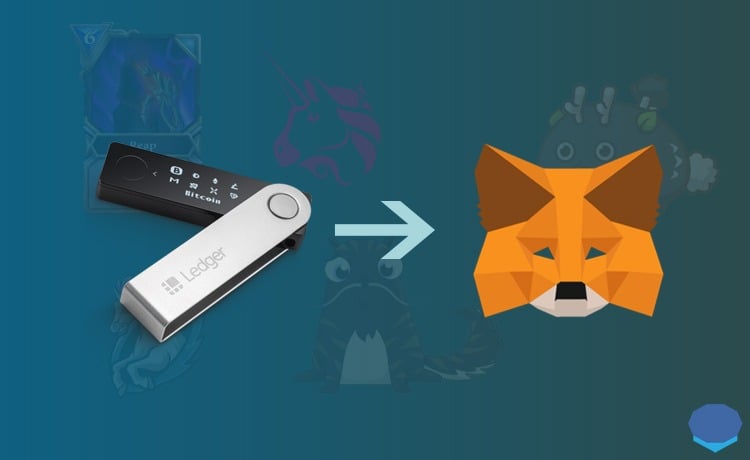
In this article, we’ll explore how you can ensure maximum security using your Metamask with a Ledger hardware portfolio.
In this article, we will discuss:
What is MetaMask?
Represented with the face of a fox, MetaMask is a cryptocurrency wallet that is arguably the most popular and trusted among crypto users. It comes as a plugin that you can install on Chrome, Brave and Firefox internet browsers.
MetaMask is a non-custodial cross-chain wallet that allows you to store crypto assets based on Ethereum, Binance Smart Chain, Polygon and other blockchains. Unlike a bank or wallet on a cryptocurrency exchange, MetaMask is not interested in controlling your funds or your transactions. So, as long as you secure your wallet the right way and have your private keys, only you will control your money.
It is also categorized as a “hot wallet”, meaning that the wallet is connected to the internet to enable certain functionality on the web. This significantly improves ease of use when accessing blockchain applications ( dApps ), but comes at a cost.
Main advantages
- Security is always a concern for anything on the Internet, as are cryptocurrencies. As the user base grows, the number of encryption hacks and theft is also increasing.
- The first step to protecting your cryptographic assets is to store them in a non-custodial cryptocurrency wallet, such as MetaMask. The wallet provides easy access to a variety of blockchain-based services.
- Hot wallets, such as Metamask, remain connected to the Internet, which carries some risks.
Rewards that accompany the risks
Cryptocurrencies and blockchains have more use cases than you might think. Most are found in decentralized applications (dApps) and decentralized finance protocols (DeFi) .
MetaMask was built to work with these apps and reduce barriers to entry for crypto users. You can use your MetaMask credentials to access these services in a single click.
Whenever you open a dApp or a DeFi protocol, you can click the “Connect” button and use your MetaMask credentials to log into the platform. Here are some things you can do using MetaMask:
- Take out Aave loans or borrow your assets for a handsome interest
- Buy, sell, trade NFTs on OpenSea
- Log in and play decentralized games like Upland
- Use Yearn Finance to start agricultural production
- Subscribe to NFT and cryptocurrency airdrops
Risks associated with hot wallets
Anything connected to the internet isn’t completely secure, not even government systems that suck in billions of dollars to maintain high levels of security. The same goes for MetaMask. It is connected to the Internet and therefore leaves room for hackers to attack and steal users’ funds.
To gain access to someone’s funds, a hacker can remotely install malware to access the user’s browser and make changes to drain the funds in their wallet.
For example, a Reddit user explains here how a hacker broke into his system to transfer 1,98 ETH worth approximately $5.000 at the time of writing to another wallet. Redditor also added that potential malware installed on his system changed any encrypted wallet address copied to a different one when pasting. In April of last year, the official MetaMask wallet of a cryptographic project called EasyFi was hacked, losing more than 75 million dollars in cryptographic assets.
And these attacks are common because hackers don’t need to access your wallet directly. Instead, they can manipulate your computer system or just your browser to get the information they need to steal your funds.
For these reasons, even MetaMask recommends its user to get a hardware wallet if they own a significant amount of crypto tokens.
Use MetaMask with the Security of a Nano Wallet
Now that you know the risks, you might wonder if there’s a way to use MetaMask without jeopardizing your security. Of course, there is: leveraging the security of a cool wallet with the accessibility and ease of a hot wallet.
In general, using a cool wallet like Ledger Nano is the smartest and most secure way to store private keys, which act as proof of the cryptographic assets you have. Ledger Nano stores your private keys offline and makes sure no one on the internet can tamper with them. That’s why a combination of Ledger and MetaMask is considered the safer and gentler alternative.
This combination provides a physical U2F. Which means you will need to physically connect your Nano wallet to your computer to sign and confirm all transactions requested through MetaMask. As you can imagine, this makes hackers’ work quite difficult. This is what makes using the combination of MetaMask and Ledger so safe.
First, buy a Ledger hardware wallet to protect your private keys. Ledger devices come with a software called Ledger Live (available on mobile and desktop), which is basically the equivalent of the iphone app store, providing you with a secure gateway to all your encryption services and which you can download for free through of this link. You can see how to configure your Ledger device at the link below.
Once in Ledger Live, create your Ethereum account by clicking on accounts on the left side, then add an Ethereum account.
After that, you can transform your Fiat ($, £, €, etc.) into Ethereum (cryptocurrency). For most of you, the easiest way to do this is via Wyre / Coinify on Ledger Live.
You will then be able to use your Ledger live Ethereum account on Metamask with the security of your hardware device.
You now have only 6 steps left.
Looks good? We will guide you through the steps of how to connect Ledger to MetaMask.
1. Step
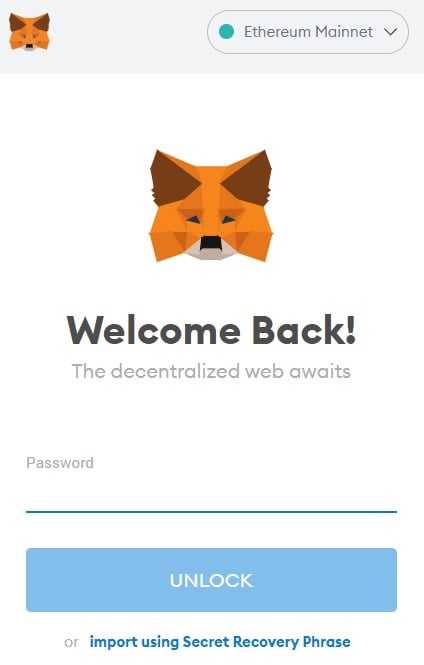
Connect your Ledger Nano to your computer device using a USB cable. Also, open your MetaMask wallet in full screen in Brave or Chrome browser.
2. Step
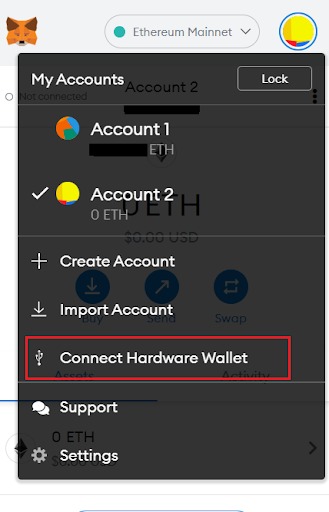
Click on the top right menu of the MetaMask wallet, then locate and click “Connect Hardware Wallet” from the drop-down menu.
3. Step
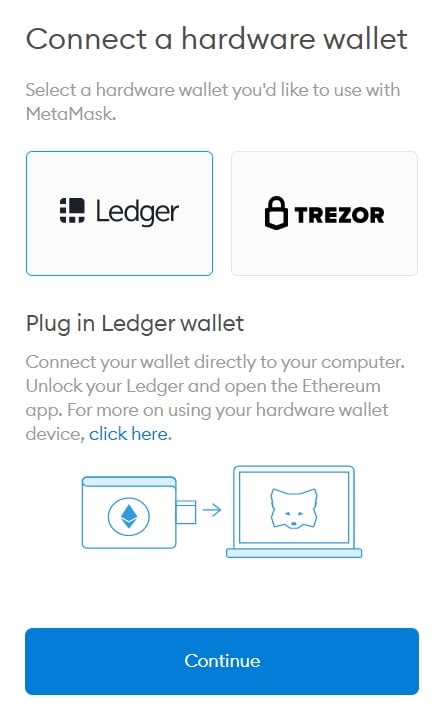
When clicking “Continue”, MetaMask will look for a Ledger device connected to the computer. So, to make sure it discovers your wallet, unlock your Ledger wallet.
6. Step
Once it discovers your wallet, it will prompt you to choose a G/L account that you want to connect to MetaMask. Choose what you prefer and finish.
5. Step
last two steps to ensure everything runs smoothly.
Click on the Ethereum app in the hardware portfolio display, then click on settings and activate the contract data. Or else it will not work properly.
Open the Metamask window, click the account logo in the upper right corner, scroll down to the settings and click. Then click on advanced settings, scroll down and enable “use with Ledger Live”.
Tada , this will allow you to view your Ledger wallet balance in your MetaMask extension. You will also be able to transact in all blockchain apps that support MetaMask. The only thing you need is to connect your Ledger wallet to your device, open Ledger Live, verify and sign transactions.
6. Step
Enjoy your journey, now you can interact with all your favorite NFT markets from the security of your hardware wallet by selecting MetaMask at login.
If you’re having problems or feel a little lost, this support page can be helpful.
Take the security of your assets to the next level
Every day there is news about the theft of cryptocurrencies. In some cases, centralized platform breaches are to blame, while in others, end users are to blame. But you…you don’t have to deal with it. You can simply pair your MetaMask and Ledger device together and be sure to make hackers difficult!
Protecting Your MetaMask Wallet With the Ledger Nano S and WebHID

Here’s the most up-to-date information available about protecting yourself from scammers by connecting your MetaMask wallet to a Ledger device.
With all of the scams and hacks going on, and my increased usage of MetaMask, I just didn’t feel safe any longer. I was going to buy a separate laptop that would only be used for crypto, but that laptop would still be connected to the internet. One lapse in judgement is all it takes to lose your crypto, and having a separate computer for those transactions isn’t going to make a difference.
Thankfully, we can use hardware keys to protect our assets when using hot wallets like MetaMask. I don’t know when this capability became available, but there are a few articles and YouTube videos on how to set everything up. I went through the steps last night, and that was when I realized that things had changed just slightly, and for the better. I wrote this article so that readers would have the most current, and convenient, method of protection.
Previously, you would use Ledger Live as a bridge between the Ledger Nano and MetaMask, but now there is a new option called WebHID. My understanding when Presearching it was that this precludes any need for Ledger Live, and everything can be done with MetaMask and the hardware key alone. That sure sounded good, but I needed to put it to the test and share my results with you all.
The Setup
I’m using Brave v1.34.80, Chromium 97.0.4692.71 (Official Build), 64 bit, Ledger Live 2.36.3, and a Ledger Nano S with firmware 2.1.0. As far as I know, these are all the latest builds as of the time of this writing. I like Brave because of its handy Profiles feature, but this should work the same in Chrome.
By the way, if it wasn’t already obvious, these instructions are intended to help you protect an already-existing MetaMask wallet. This is for people that already have assets in a wallet and want to add that extra layer of protection. If you don’t have MetaMask set up yet, don’t worry! You can perform those setup steps first, and then come back to this article later to harden your security. There are many articles and YouTube videos available to help you with this.
Configuring Your Ledger
We begin by configuring a new Ledger device — I’m using a Ledger Nano S, which are relatively reasonably-priced. I bought a Family Pack direct from Ledger for $139. I also recommend only purchasing from Ledger, as in the past people have been scammed with tampered devices.
When you plug in the Ledger, it will display “Welcome to Ledger Nano S” on the screen. Press the right button until it says “Restore from Recovery phrase”, then press both buttons simultaneously.
Next, it will say “Choose PIN”. Press both buttons at the same time again. Use the left and right buttons to cycle through the numbers, and press both buttons simultaneously when you like the number. Do this multiple times until you’ve generated a 4 to 8 digit PIN. When you’re happy with the PIN, you can select the checkmark and press both buttons. Finally, confirm the PIN you’ve created by pressing both buttons at “Confirm PIN” and then re-enter your PIN.
Now you will perform a step that basically links your Ledger to your existing wallet by providing the seed phrase in your MetaMask wallet. You really should have this written down somewhere and stored in a safe location, but in case you don’t, you’ve just given yourself a great opportunity to do it.
Click the MetaMask extension, then click your account avatar and select Settings.
Scroll down to Security & Privacy and click it. Then click the Reveal Secret Recovery Phrase button, enter your password, heed the warning, and then click Next.
If you haven’t saved your seed phrase yet, please do it now. Don’t take a screenshot of it, or a picture. Write it down on paper. Or buy a Cryptosteel product (I’ll be doing an article on this later). Store it somewhere safe. Again, no screenshots or pictures, please.
This next part is a little tedious, because you’ll have to manually enter this 12 word seed phrase into your Ledger. However, you’ll be happy to hear that there are only so many words in its dictionary, so you won’t have to cycle through up to 26 letters for every character in the words! It will intelligently offer you valid letters only, like those old-school GPS car navigation systems.
Press the right button until the Ledger says “Recovery phrase with 12 words” and then press both buttons. You will be prompted with “Enter word #1”. Every time you enter a word, the # will increment until you’ve entered all 12. To get to the word creation screen, press both buttons. Press left and right until you match the first letter, then press both buttons to select it. Do this again 2–3 times until the Ledger presents you with possible word choices. Now use the left or right buttons until the word you want is matched. Press left and right together to select the word. Only 11 more words to go!
That wasn’t too bad, right? The Ledger will say, “Processing” for a few moments, and then it will say, “Your device is now ready”. On to the next step!
Ledger Live
Although you won’t need Ledger Live as a bridge any longer, you still need it in order to install the Ethereum app on the Ledger device. It’s also a good idea to update your firmware to the latest, in case you’re using an old one that hasn’t been updated in a while.
First, download Ledger Live from the official site. Don’t risk getting scammed by searching for it and then clicking the first link, which could be a malicious ad, for all we know! You probably shouldn’t even use the link I posted — even though I feel I’m trustworthy, remember that the saying goes, “trust, but verify”.
Once Ledger Live is installed, disconnect the Ledger device and launch Ledger Live. Now click the Manager app from the left pane.
The Ledger device will prompt you to “Allow Ledger manager” — click both buttons to allow it. If you’re not at the latest version of firmware, you should update it.
Since you had multiple opportunities, you have your recovery phrase saved (right. ), so you can just click the checkbox and then click Continue. Ledger Live will download and apply the update, which takes only a few minutes.
When your Ledger says “New Firmware 2.1.0”, press the right button, then press both buttons to confirm the update. The firmware will be applied to the device and will prompt you for your PIN again. Enter it, and then click the “Install apps” that will appear. Allow the Ledger Manager access if prompted again.
If you didn’t need to update your firmware, you’ll end up at the exact same screen in the end, which is the one that shows a list of available apps. Simply click the Install button next to Ethereum (ETH).
The Ledger Nano S doesn’t have a lot of space for apps, but I think it’s the ideal device in this case since we are only ever going to use this with the MetaMask extension. After the Ethereum app is installed, select it on your Ledger and press both buttons to launch it.
Great, we’re done with that step! Now it’s time to finish up the MetaMask configuration.
Configuring MetaMask for the Ledger
Click on the MetaMask extension, followed by your avatar icon again. Go to Settings. Select the Advanced menu, and scroll down. Ensure that the “Preferred Ledger Connection Type” is set to “WebHID”. It should be, since it’s the default, but we want to be sure.
Click your avatar icon again, and this time, select Connect Hardware Wallet.
Select your hardware type, which in this case is Ledger (I haven’t tried my Trezor, yet, but I expect the process to be similar, if not the same), and connect your hardware.
When you click Continue, a popup will appear. Select “Nano S” and click Connect.
After a small delay, MetaMask will display a list of all of your accounts. This is very important — ensure that you can see all of the addresses! It’s best to jot down the MetaMask addresses you’re currently holding assets in. Then you want to look at the accounts in the “Select an Account” window and confirm they are there.
If you don’t see some accounts, check the other paths in the droplist:
You should see them now. You don’t need to do anything else with this dialog — this is just a confirmation step. But it’s a very important step because, again, you want to make sure you’ve saved all of your asset-holding account addresses.
NOTE: You may have wondered, “What happens if I connect the wrong Ledger to this account, or mis-entered the recovery phrase?”. I had the same question, so I tested it. After entering your PIN, MetaMask will report an error:
Which is obviously a good thing. 🙂
RE-configuring MetaMask
I’m sorry, this seems like such a nuisance, but it’s a very important step. You don’t want your private keys on your computer at all. Therefore, you must now remove the MetaMask extension. Yes, that’s right. Click the extension icon, then click the hamburger menu and select Remove from Brave:
Then re-install MetaMask, using the steps you’ve used before. Click on the MetaMask icon to get to its welcome screen. Click Get Started, followed by Create a Wallet. We’re basically creating a dummy MetaMask account that won’t be used, and if you get hacked, the only thing the hacker will see is a bunch of accounts without any tokens for them to steal. 🙂
I suppose you could create a strong password for this dummy wallet, but (not advice here) I’m just using something silly like asdf1234 . As for the secret recovery phrase, I merely snipped the window and used it to pass the confirmation page, but I’m not saving the phrase anywhere safe, either. This is a dummy wallet.
Once you’ve confirmed your recovery phrase, you’re almost there! Click on your account avatar and select Connect Hardware Wallet again. Go through the same steps as before. You might need to enter your PIN again and re-execute the Ethereum application before the hardware key is recognized.
Finally, you can select the accounts that you want to enable in MetaMask by checking them in the account list. Again, if you don’t see the account addresses that you want, select a different path from the droplist.
Once all of your accounts have been selected, click Unlock.
Congratulations! You have successfully hardened your MetaMask wallet by connecting it to a hardware key. Now assets can only be spent if the Ledger device is connected to your PC and unlocked.
The Big Test
You’re probably wondering what to expect when the time comes to spend some tokens. I’m going to switch over to one of my real hardware keys and will go through a simple swap on PancakeSwap (but will only go so far as to show the hardware request), as well as on Drip, since that’s really the only asset on my MetaMask wallet that I care about these days. Those DAOs I’ve invested in recently… pffff. There’s a future article coming for them.
All right — plug in your Ledger and run the Ethereum app, and visit PancakeSwap. Click on the Trade link at the top and then make up any old swap. I have a little BNB left, so I will swap 0.1 BNB for CAKE.
Click Swap, then Confirm Swap from the popup, and look what happens. If you scroll to the bottom of the MetaMask popup, you’ll see this:
In order to prove that the hardware key is required, I disconnected the Ledger and then clicked Confirm.
It failed! But what about the success case? We need to test that out as well. I don’t want to waste 0.1 BNB, so I’ll go with something smaller.
Click Swap, and then Confirm at the popup.
Oops! We didn’t read all of the directions in the confirmation page. Notice that it says you have to enable blind signing? Here’s how you do that.
Currently, your Ledger should say “Application is ready”. Click the left or right button until you see the “Settings” option. Click both buttons to enter Settings. The first option says, “Blind signing NOT Enabled” — click both buttons to enable it. Then click either button until you see “Back”, and finally, click both buttons to exit Settings.
Ok, try the swap again. This time when you click Confirm, look at the Ledger — it will say “Review transaction”. Click the right button and review all of the information on the screen. Eventually, you’ll reach “Accept and send”. Click both buttons to accept the transaction. PancakeSwap should immediately update with something that looks like this:
Close the popup, and you’re done! Congratulations, you’ve just verified to yourself that the Ledger is providing you with all the protection you need to avoid getting hacked.
The Drip Test
The main reason why I decided to harden my MetaMask wallets is to protect my assets in the Drip Network. If you’re not in Drip, well, this isn’t financial advice, but you might want to read my article on it. 1% daily compounding interest is no joke. There are definitely important things to understand about Drip, because everything you deposit gets “burned”, but there is such massive upside that those burns will be pretty meaningless in the end. We want to protect these compounded earnings more than anything else in the world.
The things we want to test include: hydration (compounding), claims, purchases, and withdrawals. I’m going to sacrifice one of my smaller wallet’s BNB holdings to test this out for my readers.
Hydration test: Clicked Hydrate, then Confirm on the MetaMask popup. I rejected the transaction on the Ledger. Hydration failed as expected! I then tried again, but this time accepted the transaction. After a fire moments, the transaction was approved and I compounded my interest.
What about purchasing more DRIP? I went to the Fountain and bought 0.1 BNB of DRIP. I rejected the transaction, and again, it was not processed, as expected. Then I re-issued the request and accepted the transaction. DRIP purchased!
Back to the Faucet so we can deposit the newly-purchased DRIP. Oops, not enough. Went back and bought more DRIP so I could retry. When I rejected the transaction, it failed as before:
And when I accepted, it went through.
Ok, I think I’ve beaten this horse to death. The Ledger integration with WebHID just works. And it’s nice because there’s no more need to use Ledger Live as a bridge! So I’m not going to test withdrawals, because I feel pretty confident that it will work like every other operation I’ve already tried.
Double Taxation?
I have one last thing to address. When on Telegram, I noticed that someone was asking about double taxation. This person had heard that when you use a hardware key with MetaMask and DRIP, you’ll get taxed twice. This is why I provided the before and after screenshots for my deposit of 1.030975226846216393 DRIP. I pulled up the transaction for this and you can see that there were only two transfers:
The first transfer is the tax, and the second is what went to my Deposits. As you can see, 32.404–31.453=0.951. Well, that’s a little weird I suppose, because I would have expected 0.92787 to be deposited, as shown in the block explorer. However, there’s a great explanation for this — I just hit 5 team players today!
Having 5 team players means upside for you to join my team. 🙂 Please use my buddy address: 0x8896F41511935fc27e05B8c86563608659cEC9B7
This means that all of my team’s deposits should now get a 2.5% bonus, which helps to offset the 10% tax. Doing the math, we see that 0.927877704161594754 * 1.025 = 0.95107464676563462285. Not exact, but very close. Close enough that I think it’s fair to say, “Mystery solved”! My team players are going to get bonuses now!
Update 1/21/2022: What Happens if my Transaction is Stuck?
I had a problem today when I was managing my multiple Drip wallets — I was hydrating all of them, and on the last one, my Ledger didn’t prompt me to accept the transaction. I tried multiple times, only to realize that I had queued up a bunch of transactions in MetaMask. After waiting a long time, none of them would go through, and I also couldn’t cancel them (this just added more transactions to the queue).
Closing Brave and reopening didn’t help.
I then found some information online and wanted to share it with you here, because it worked! In the Brave address bar, enter about:restart and then hit Enter. All of your Brave browsers will close, and then re-open. Don’t worry, all of their window positions will be restored! Now you just have to re-login to all of the MetaMask wallets.
One note here about the MetaMask logins — I used to use extremely long, 256-bit passwords for them. However, when I connected the Ledger to all of my accounts, I set asdf1234 as all of the dummy accounts’ passwords. Imagine the fear that set in when I initially tried to login to my main Drip account and the password was rejected! Thankfully, it didn’t take me more than a moment to realize what was going on.
In hindsight, using an easy-to crack password for the dummy MetaMask account is not a good idea, so I’m going to change them. While the Ledger will still provide you with protection, there’s no point in taking down an extra layer of security by using a simple password.
Conclusion
I hope this was a really good read for you, and helps you realize how adding a hardware key like the Ledger Nano S can really put your mind at ease. I’ve gone through upgrading a couple of my wallets, and I’m going to move on to my main wallet soon. That one will be interesting since it has multiple accounts on it, but I trust that the process will be just as painless.
If you liked this article and are not a Medium member, I’d appreciate it if you signed up using my referral code. Thank you!