How To Add Bitcoin (BTC) To Metamask [2 Methods]

Bitcoin is unarguably the most popular cryptocurrency out there and one of the first coins (if not the first coin) mentioned when people talk about adoption and investing in cryptocurrencies.
Metamask on the other hand is a leading non-custodial wallet in the crypto space. It is used by millions of crypto investors across multiple operating systems to purchase, store, and trade cryptocurrencies and other digital assets across different compatible blockchains with ease.
If you use Metamask as your primary wallet for holding and trading various cryptocurrencies across multiple blockchains, you might be wondering, if it is possible to add Bitcoin to Metamask.
Well, if you’re one of those who are looking for answers to that question, you’re on the right page. In this article, you will learn if it is possible to add BTC to your Metamask wallet as well as how to add BTC to Metamask using some alternative methods if it is not possible natively.
Can You Add Bitcoin (BTC) To Metamask?
No, you cannot add native Bitcoin (BTC) to your Metamask wallet and this is because the native Bitcoin Network is not compatible with Metamask.
While you might be able to configure Metamask to work with some other blockchains and their native tokens, this is not the case with BTC because the native Bitcoin network is not an EVM-compatible network.
Only blockchains that are compatible with the Ethereum Virtual Machine can be added to Metamask.
How To Add Bitcoin (BTC) To Metamask (Alternative Methods)
While you are unable to add native Bitcoin (BTC) to your Metamask wallet due to the Bitcoin Network not being compatible with Metamask, there are some alternative methods you should consider if you want to store some BTC on your Metamask wallet.
The first method is by adding Binance-PEG Bitcoin (BTCB) to your Metamask wallet and then sending BTC from an exchange (like Binance) to your Metamask wallet using the Binance Smart Chain (BEP20) network.
Another method you can utilize to add BTC to your Metamask wallet is by adding the Wrapped Bitcoin (WBTC) token deployed on another chain (Ethereum in this case) to your Metamask wallet using the correct contract address.
Any of these two methods will work if you want to add BTC to Metamask and each method is explained in a step-by-step guide below.
Method 1: Add BTC To Metamask via the Binance Smart Chain.
The first alternative method you can use to get BTC on your Metamask wallet is by adding the Binance-PEG Bitcoin (BTCB) token to your wallet using the Binance Smart Chain network.
While this is not the native Bitcoin (BTC) that is used on the Bitcoin network itself, it is the Binance-Pegged version of the token which carries the same value as the native Bitcoin currency.
Binance Pegged tokens are 100% backed by the native coin in reserve and the reserve addresses are published for anyone to audit. You can find the BTC reserve address for BTCB here.
1 Binance-PEG BTC (BTCB) is the same as 1 BTC just on different blockchains. You can also convert the Binance-PEG BTC (BTCB) to native BTC and vice versa using the Binance bridge on the Binance.com exchange.
Now that you understand how this works, let’s show you how to add BTCB (Binance-PEG BTC) to your Metamask wallet using the Binance Smart Chain.
Step 1: Copy the contract address for Binance-PEG Bitcoin (BTCB).
To add the Binance-PEG BTC token to your Metamask wallet, you need the correct contract address for the token.
The correct contract address for Binance-PEG BTC (BTCB) is “0x3EE2200Efb3400fAbB9AacF31297cBdD1d435D47” so go ahead and copy that to your device clipboard.
Alternatively, you can visit the Binance-PEG BTCB token page on BSCScan or the official BTCB token page on CoinMarketCap and copy the contract address directly from there.
 Copying the Binance-PEG Bitcoin (BTCB) contract address from BSCScan.
 Copying the Binance-PEG Bitcoin (BTCB) contract address from CoinMarketCap.
Step 2: Launch the Metamask extension and enter your password.
Next, launch the Metamask extension and enter the account password to unlock your wallet.
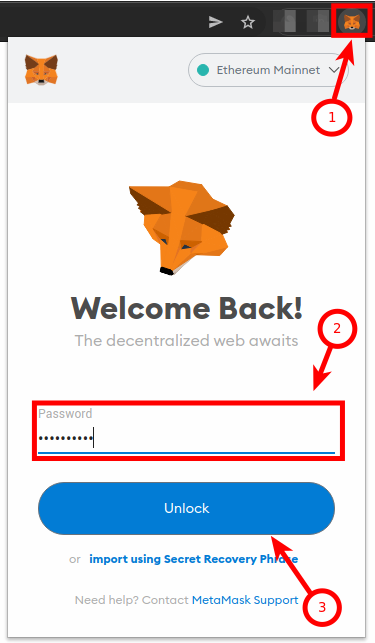
If you use the Metamask app on your mobile device, then you can simply unlock your wallet using any of the available biometric methods like Face ID, fingerprint, PIN, or Face Unlock.
Step 3: Ensure Binance Smart Chain is the selected network.
Since we’re adding Binance-Pegged BTC (BTCB) to Metamask via the Binance Smart Chain, you want to make sure that you have already added the Binance Smart Chain network to your Metamask wallet and selected it as the default network.
If you haven’t added the Binance Smart Chain to your Metamask wallet, we have a good tutorial on how to add BSC to Metamask easily on both the extension and mobile app. You will need to follow the steps in that article to add the network to your Metamask wallet before moving forward with this guide.
Once you have added the Binance Smart Chain network to your wallet, go ahead and select it as the default network as in the screenshot below.
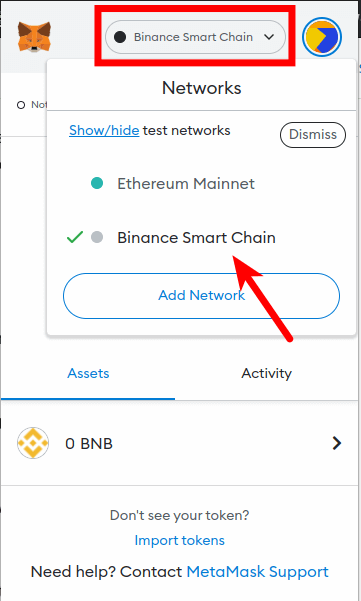
Step 4: Click on [Import tokens].
Now that you have selected the correct network, scroll down on the Metamask window and click on [Import tokens].
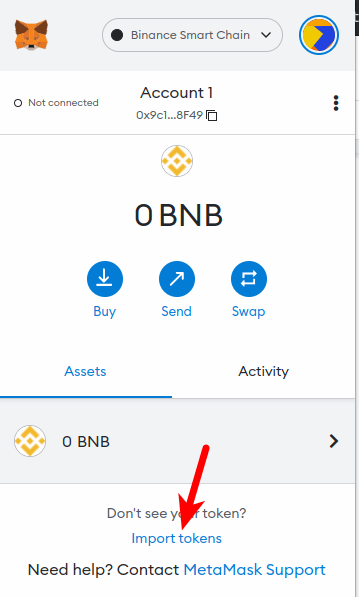
Step 5: Paste the Contract Address and click [Add Custom Token].
Paste in the Binance-PEG BTC (BTCB) contract address you copied earlier and wait a few seconds for Metamask to automatically fetch the Token Symbol and Ticker.
Once that’s done, click on [Add Custom Token].

Finally, click on [Import Tokens] to add Binance-PEG BTC (BTCB) to your Metamask wallet.

With this, you have successfully added Binance-Pegged Bitcoin (BTCB) to your Metamask wallet.

Note: You can not send native Bitcoin (BTC) to your Metamask Binance-PEG BTC (BTCB) wallet address and this is because they are both deployed on separate blockchains even though they carry the same value.
That said, you can only send BTC (BTCB) to your wallet on Metamask using the Binance Smart Chain (BEP20) network.
Transferring native BTC from an eternal wallet or crypto exchange to your Metamask wallet address will result in a permanent loss of funds so ensure you use the correct network when sending BTC to your Metamask wallet!
Method 2: Add Wrapped Bitcoin (WBTC) to your Metamask wallet.
Another alternative method to get BTC on your Metamask wallet is by adding the Wrapped Bitcoin (WBTC) token to your wallet.
Just like the Binance-Pegged Bitcoin token (BTCB), Wrapped Bitcoin (WBTC) is an ERC-20 token that delivers the power of Bitcoin on the Ethereum network.
In simple terms, WBTC is just a form of BTC that is deployed on the Ethereum blockchain. It is backed 1:1 with Bitcoin which means that 1 WBTC equals 1 BTC and they both carry the same value.
Below is how you can add WBTC to your Metamask wallet.
Step 1: Copy the Wrapped Bitcoin (WBTC) contract address.
To add WBTC to your wallet, you first need to copy the contract address of the token (since it is an ERC-20 token).
The correct contract address for Wrapped Bitcoin (WBTC) is “0x2260FAC5E5542a773Aa44fBCfeDf7C193bc2C599” on Ethereum so go ahead and copy that to your device clipboard.
Alternatively, you can visit the WBTC token page on EtherScan or the official WBTC token page on CoinMarketCap and copy the contract address directly from there.
 Copying the Wrapped Bitcoin (WBTC) contract address from EtherScan.
 Copying the Wrapped Bitcoin (WBTC) contract address from CoinMarketCap.
Step 2: Unlock your Metamask wallet and ensure the Ethereum Mainnet is the selected network.
Launch the Metamask browser extension or mobile app depending on your device and enter your account password to unlock the wallet.
Now since we will be adding the Wrapped Bitcoin token (WBTC) to Metamask on the Ethereum blockchain, confirm that the Ethereum Mainnet is the selected network on your wallet.
By default, Ethereum should be the selected network, but if you have added a new network to your wallet and selected that network, you will have to switch back to the Ethereum network by clicking on the network dropdown box and then selecting “Ethereum Mainnet”.
Step 3: Click on [import tokens].
On the Metamask main window (or home screen), scroll down and click on [import tokens] at the bottom of the page.

Step 4: Navigate to the “Custom Token” tab.
On the Token Import window, click on [Custom Token] to navigate to the Custom Token tab.

Step 5: Paste the Contract Address and click [Add Custom Token].
Now, paste in the Wrapped Bitcoin (WBTC) contract address you copied earlier and wait a few seconds for Metamask to automatically fetch the Token Symbol and Ticker.
Once that’s done, click on [Add Custom Token].

Finally, click on [Import Tokens] to add Wrapped Bitcoin (WBTC) to your Metamask wallet.

With that, you have successfully added WBTC to your Metamask wallet on the Ethereum Network.
Note that just like the Binance-Pegged Bitcoin (BTCB) token we talked about earlier, Wrapped Bitcoin is not the same as the native bitcoin since they are deployed on different blockchains even though they have the same value.
Due to this reason, you cannot send native Bitcoin (BTC) to your Metamask WBTC address. The native bitcoin uses the Bitcoin network while Wrapped BTC is deployed on the Ethereum network as an ERC-20 token.
To transfer WBTC to your Metamask wallet from an external wallet or crypto exchange, you need to use the Ethereum ERC-20 network.
Wrapping Up
You’re currently unable to add native Bitcoin (BTC) to your Metamask wallet because the Bitcoin network is not an EVM-compatible blockchain. Metamask can only be configured to work with blockchains that are compatible with the Ethereum Virtual Machine.
You can however add the Binance-Pegged version of Bitcoin (BTCB) and Wrapped Bitcoin (WBTC) to your Metamask wallet via the Binance Smart Network and the Ethereum network respectively by manually inputting the correct contract address of the token into your Metamask wallet.
If you were searching for a tutorial on how to add BTC to Metamask, we hope you found this guide helpful.
Как добавить новую сеть в MetaMask буквально одним кликом
Всем доброго времени суток. Сегодня разберём то, как добавить сеть практически любого блокчейна в Метамаск одним щелчком мыши. Также разберём вопрос того почему кошелек Metamask не хранит вашу криптовалюту. Как же работает Метамаск? Рассмотрим в этой статье. Поехали.
Прежде всего, чтобы развенчать миф о том, что Метамаск крадёт криптовалюту, я объясню немного теории. Первое, что вам нужно понять, это то, что Метамаск, как и любой другой криптовалютный DEX кошелек, не держит вашу криптовалюту. Вся криптовалюта находится в распределённом реестре или блокчейне. В настоящее время есть множество блокчейнов, работающих на различных принципах консенсуса. В качестве примера можно привести блокчейн BTC (Omni), ETH (сеть ERC-20), BSC (BEP-20), Tron (TRX-20) и другие. Есть только один способ получить доступ к своим монетам на узлах блокчейна — это мнемонические фразы. Сам Метамаск — это всего лишь связующее звено (программное обеспечение) между вами и блокчейн средой. Поэтому важно держать мнемоническую фразу, которую Метамаск дает вам при регистрации кошелька в закрытом месте и входить в систему с надежным паролем.
Итак, загрузив расширение Метамаск в любой браузер, вы можете перейти в мир децентрализованных финансов (DeFi). Найти Метамаск можно в маркете расширений. Лично я использую браузер Google Chrome.
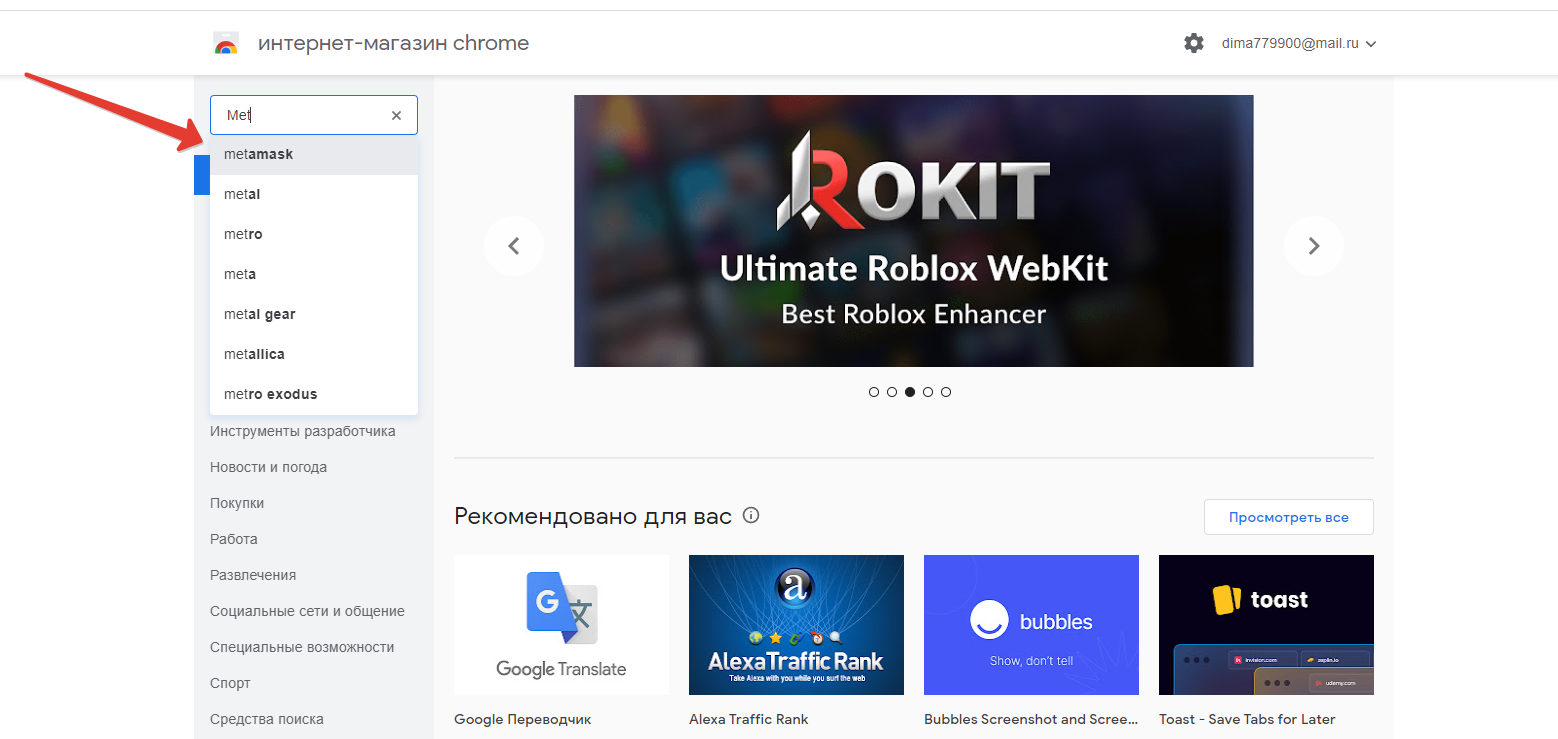
Чтобы установить Метамаск , введите запрос в поисковике — «магазин расширений google chrome». Далее в поиске маркета расширений введите — «MetaMask». Теперь все, что вам нужно сделать, это установить Метамаск в браузер и закрепить его на вкладке дополнений.
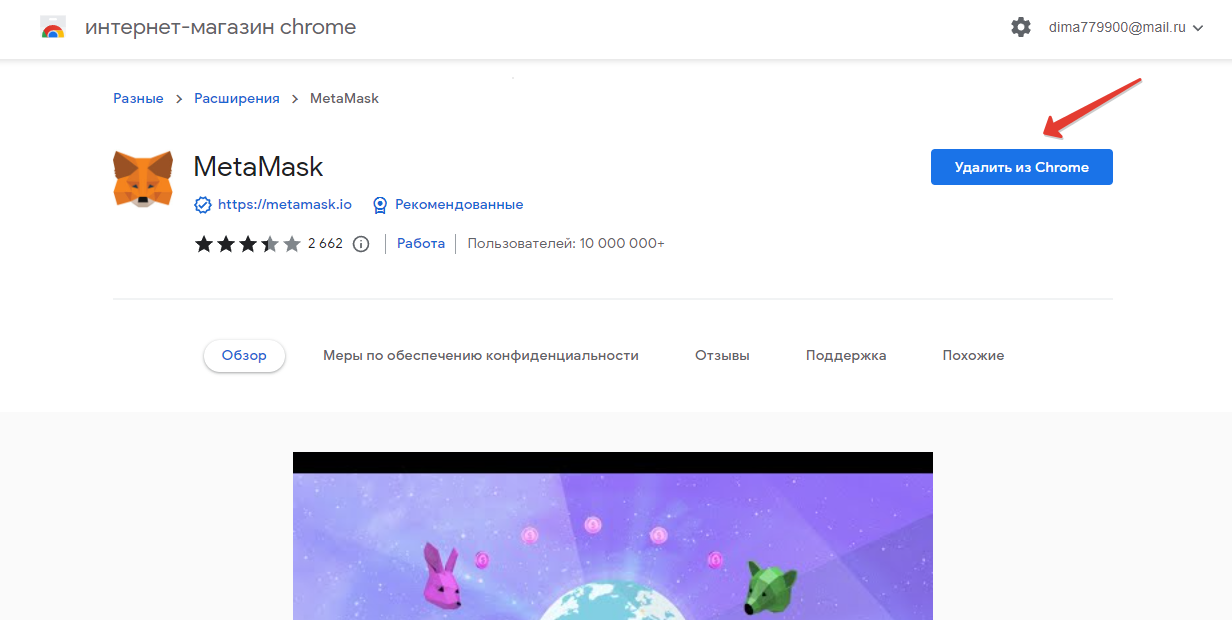
Затем создаём сам кошелек Метамаск. Для этого надежно сохраните мнемоническую фразу (запишите слова на листе бумаги). После повторите слова в правильном порядке в самом Метамаске. Далее придумайте хороший пароль для входа в Метамаск после завершённой сессии. Первоначально Метамакс имеет только одну сеть ERC-20 — Ethereum.
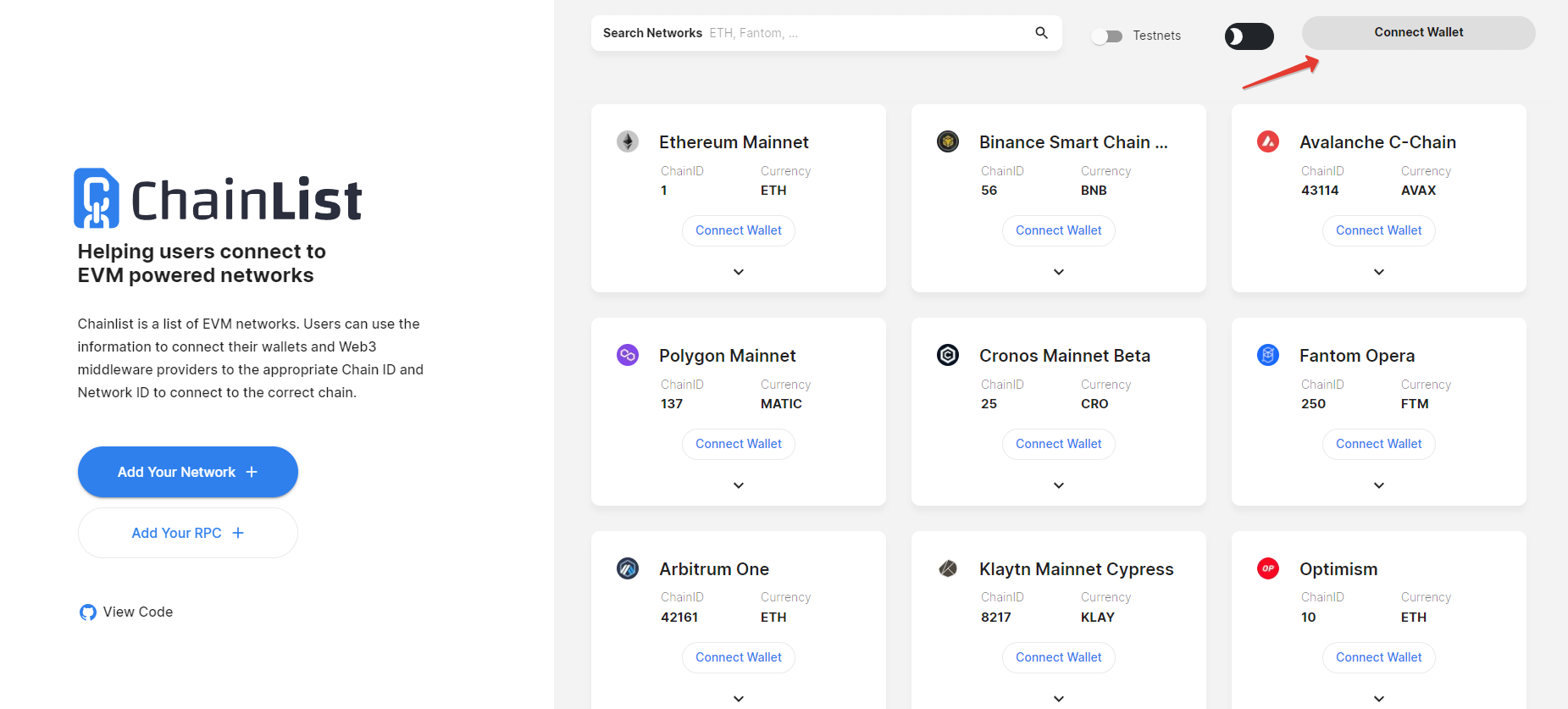
Для добавления любой другой сети одним кликом, перейдите на сайт ChainList и подключитесь Метамаском. Далее выберите нужную сеть, нажмите «Add To MetaMask» и подпишите нулевую транзакцию. После сеть станет доступной в Метамаске.
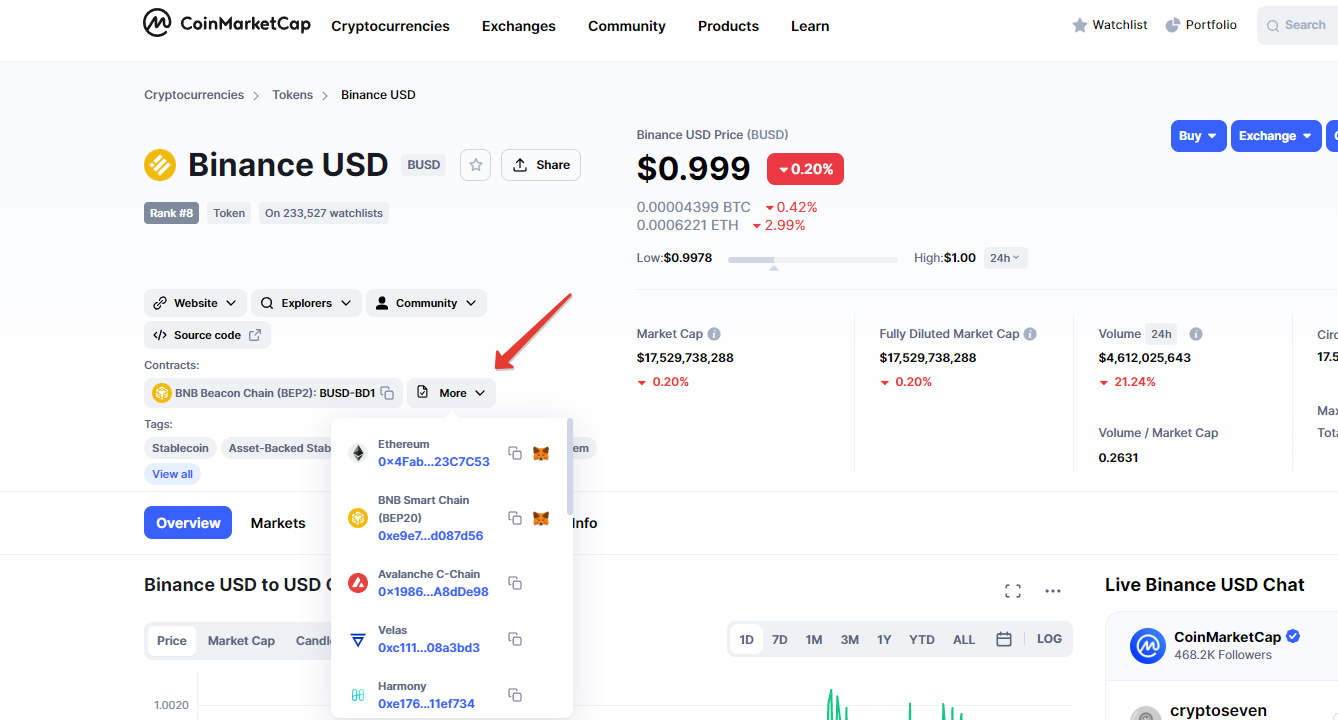
Добавив сеть в свой Метамаск, нужно ещё добавить и токены от той или иной сети. Для этого зайдите на CoinMarketCap и найдите нужный вам актив. Затем во вкладке «Еще» найдите адрес контракта токенов для нужной вам сети и скопируйте его.
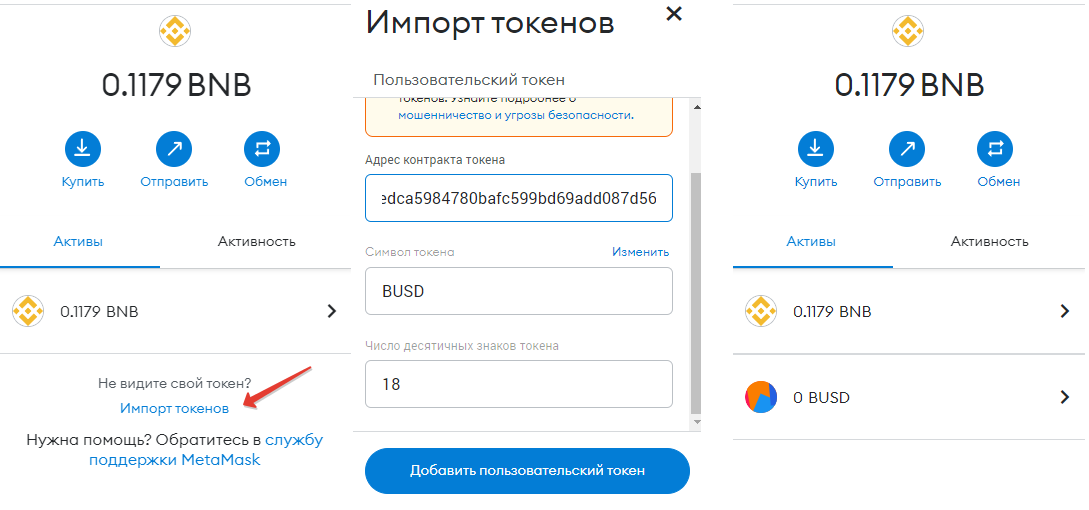
Затем перейдите в раздел «Импорт токенов» в Метамаск, вставьте адрес в поле «Адрес контракта токена» и нажмите «Добавить пользовательские токены».
Напоследок, для лучшего понимания рекомендую посмотреть обучающие видео на моем канале YouTube, чтобы понять, что такое MetaMask, как им пользоваться и как добавлять в него сети.
Надеюсь, что вы нашли это руководство полезным и легко освоили взаимодействие основным криптокошельком Метамаск. Чтобы не забыть, можете добавить эту статью в закладки. Также поделитесь ей со своими друзьями, чтобы они тоже смогли узнать, как просто и быстро добавить новую сеть в Метамаск одним щелчком мыши. Всем удачи и хорошего настроения. Пока.
Об авторе
✅ Подписывайтесь на мой Telegram канал про криптовалюты, где публикуется самая последняя и свежая информация из мира блокчейн технологий. Обязательно подписывайтесь, чтобы быть в курсе и ничего не пропустить!
✅ Подписывайтесь — на мой канал на YouTube
Там много интересной и полезной информации.
Кошелек METAMASK. Установка и добавление совместимых сетей. Инструкция
MetaMask – это одновременно мобильный кошелек и расширение (плагин) для браузера Chrome, а также для других браузеров, которое работает в качестве криптовалютного кошелька в сети Ethereum и в других Ethereum-совместимых сетях. Пользователи MetaMask могут покупать, отправлять, тратить и обменивать своими монеты и токены.
MetaMask – мультивалютный теплый некастодиальный браузерный кошелек и мультивалютный теплый мобильный кошелек.
В данной инструкции описано, как скачать и установить расширение и приложение MetaMask, как добавить различные Ethereum-совместимые сети и отображение криптовалют в кошельке.
- Скачивание и установка кошелька
- Меры безопасности при установке
- Способы добавления совместимых сетей
- Список и настройки Ethereum-совместимых сетей
- Способы добавления отображения криптовалют
Установка расширения браузера MetaMask
- Мы рекомендуем использовать браузер Chrome от Google. Чтобы скачать и установить MetaMask, перейдите на официальный сайт: https://metamask.io и нажмите «Download now» (“Загрузить сейчас”).Браузерную версию MetaMask так же можно скачать и далее установить по официальной ссылке из магазина расширений браузера Chrome: https://chrome.google.com/webstore/detail/metamask/nkbihfbeogaeaoehlefnkodbefgpgknn.
Будьте внимательны и доверяйте только официальному сайту https://metamask.io/ и избегайте попадания на фишинговые сайты.
Будьте бдительны и скачивайте MetaMask только через сайт, предоставленный выше. Все остальные (неофициальные) сайты могут быть связаны с мошенничеством и могут стать причиной кражи личных данных и потери средств.
2. MetaMask подключается к браузеру как расширение, поэтому после нажатия кнопки “Download now” откроется меню, в котором можно выбрать, к какому браузеру прикрепить кошелек. В качестве примера установим MetaMask для браузера Chrome. Выберите браузер и нажмите на кнопку “Install MetaMask for Chrome” (“Установить MetaMask для Chrome”).
3. Далее в браузере откроется новая страница и перенаправит в интернет-магазин Chrome. Необходимо нажать на кнопку «Установить».
4. Нажмите на «Установить расширение» для подтверждения установки кошелька.
5. После успешной установки откроется окно, в котором нужно нажать на кнопку «Начать работу».
Успешно установлен браузерный кошелек MetaMask в браузер Chrome.
- Придумайте и введите сложный пароль.
- Не используйте одинаковые пароли и пароли, которые содержат личную информацию.
Для наилучшей защиты пользуйтесь генератором сложных паролей. Например: https://1password.com/ru/password-generator
ВАЖНО: сложный пароль состоит из 15 или более символов, содержит маленькие и большие буквы, специальные символы и цифры. Пример сложного пароля: 3t5k2U_Fs%;S8Pr3Nm^) (не используйте данный пароль).
- Сохраните пароль в недоступном для посторонних людей месте.
- Сохраните seed-фразу в диспетчере паролей, например, в 1Password.
- Запишите seed-фразу на листе бумаги и храните в надежном месте. Если вы хотите дополнительную безопасность, запишите ее на нескольких листах бумаги и храните в 2–3 разных местах.
- Запомните seed-фразу.
- Seed-фраза 12 слов: сохраните seed фразу так чтобы никто никогда кроме вас не получил доступ (в виде сид-фразы).
ВАЖНО: не сохраняйте свои пароли и seed-фразы на компьютере с подключенным интернетом, в google-таблицах и облачных сервисах. Лучше всего сохранить пароли в файле, а сохранить файл на отдельной флешке и продублировать пароли в печатном виде на бумаге.
1. Возможно создать новый кошелек или импортировать кошельки, созданные ранее.
2. Необходимо создать кошелек по шагам, предложенным сервисом. ВНИМАТЕЛЬНО читайте всё, что написано на каждой странице при создании кошелька.
Add Bitcoin Network to MetaMask
Summary: The Bitcoin network cannot be integrated into MetaMask Wallet due to its incompatibility with Ethereum Virtual Machine (EVM), which is required for supporting smart contracts. Currently, MetaMask exclusively supports blockchains utilizing EVM-compatible programming languages, such as Polygon, BNB Chain, Avalanche, Optimism, and Arbitrum.
Nonetheless, Wrapped Bitcoin (WBTC) can be purchased and held on a MetaMask Wallet. WBTC is an Ethereum-based token that represents Bitcoin and has a 1:1 backing. It enables trading, DeFi applications, and other use cases, enabling BTC utilization in the Ethereum and Web 3.0 ecosystem.
How to Add Bitcoin Network to MetaMask Wallet
Unfortunately, users cannot add the Bitcoin Network to their MetaMask Wallet because the BTC Blockchain does not support smart contracts and the Ethereum Virtual Machine (EVM) chain. If BTC holders are looking for a secure web wallet alternative to hold their assets, we recommend Wallet of Satoshi that supports the Lightning Network.
Can MetaMask Hold Bitcoin?
No, MetaMask Wallet can not directly custody Bitcoin (BTC) from the Bitcoin blockchain because it is not Ethereum Virtual Machine (EVM) compatible. However, it is possible to hold a wrapped version of Bitcoin, called WBTC (Wrapped Bitcoin), on a MetaMask Wallet. This version of Bitcoin is represented by a token on the Ethereum Blockchain and has a 1:1 peg to Bitcoin. The tokens are redeemable for BTC. The reason why you can add WBTC to your MetaMask Wallet is that it is an ERC-20 token, just like ETH, USDC, USDT, and other assets that the wallet supports.
The best way to buy WBTC with your MetaMask Wallet is through a trusted decentralized exchange like Uniswap. With this method, you can easily swap ETH, USDC or another token for WBTC that can be held in your wallet.
What can I do with WBTC On-Chain?
One of the biggest advantages to WBTC over BTC is that it offers a load of DeFi yield farming opportunities across major networks like Ethereum, Polygon, Avalanche and more. By using large decentralized finance protocols, users can earn up 10% APY in interest from DeFi money market deposits, liquidity provision and other strategies.
We recommend checking out Defillama to find the safest and highest yielding opportunities for WBTC.
Is Wrapped Bitcoin (WBTC) Safe?
Wrapped Bitcoin is the largest and most liquid BTC collateralized token on Ethereum and other Layer 1 & Layer 2 blockchains. It is considered safe to use because it is held in a secure multi-signature wallet that requires 3 signatures in order for funds to be moved. The tokens are also 100% redeemable and backed 1:1 with Bitcoin, so users can always exchange their WBTC for BTC at any time.
That said, there are always risks involved with wrapped tokens , so it’s important to do your research. We recommend reading the WBTC whitepaper and researching third-party audits before making any decisions.
Bottom Line
In summary, Bitcoin cannot be added to MetaMask Wallet due to its incompatibility with Ethereum Virtual Machine. However, Wrapped Bitcoin (WBTC) can be held on MetaMask as an ERC-20 token, enabling BTC utilization in the Ethereum and Web 3.0 ecosystem. To buy WBTC, use a trusted decentralized exchange like Uniswap. For secure web wallet options to hold Bitcoin, consider Wallet of Satoshi.