Fix Linux Ledger Live USB Connection
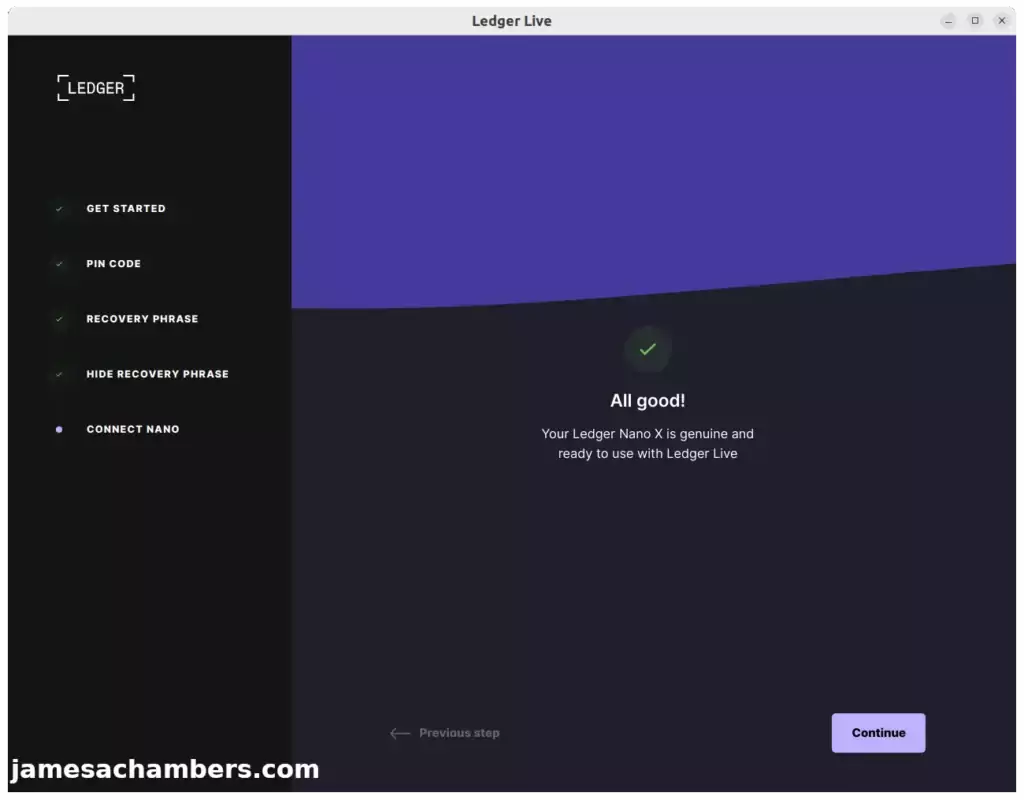
Ledger Live – “All Good”
When installing Ledger Live on Ubuntu 22.04 I ran into an issue where during the genuine check it would not find my device. It was not even prompting for a PIN or showing any activity and would simply time out eventually and fail the check.
It turns out that Ledger Live needs some udev rules to work correctly. In this quick guide I’ll cover how to set up and fix Ledger Live in Linux!
Hardware Used
alt=»Ledger Nano X» width=»84″ height=»150″ />Ledger Nano X
This version of the Ledger has Bluetooth so you are able to use it with your cell phone Ledger Live app wirelessly. Also holds a charge and has a battery!
Getting Ledger Live for Linux
The official URL to get Ledger Live is:
The file will be a .AppImage file. You want to set this file to executable and run it like this (assuming you saved it to your Downloads folder):
You will very likely find that it will fail to connect to your device during the genuine check.
Fixing Udev Rules
By adding some udev rules to Linux we can fix the USB device permissions issue.
Here is the fix:
This is pulling from the official Ledger GitHub repository so the rules it adds are safe.
Once these are added relaunch Ledger Live and try now. You should meet with success!
Alternative Fix: Launch as sudo
You may also launch the Ledger image as sudo and pass it a special command:
This fix will work for some people but many of you will have GPU related errors. One way to work around it is to actually log completely out of your desktop as your regular user and actually sign in as root. It’s not fun or ideal but if the udev rule solution won’t work it’s an option.
Conclusion
I’m not sure why Ledger’s installer doesn’t take care of this. It seems to impact every Linux install unless they happen to be logged into the GUI as the “root” user already.
Nevertheless this fix got mine up and running and working perfectly!
Other Resources
You may also be interested in my Life as a “Ledger” Wallet Data Breach Victim article especially if you want to get even more upset at Ledger!
Related Posts:
> You know how when you go to web sites to download applications for Linux and it’s almost always a .deb package and sometimes a .rpm?
Actually (and I have to restrict this to GitHub – the source of the vast majority of my packages), I find more AppImages than anything else (which obviously means that the developer intended it as a “universal” solution). And I will note that the Ledger Live wallet itself (the source of the need for udev rules under discussion) comes as an AppImage.
> If you aren’t using a source-based distribution (and I would still argue that most people aren’t…
Well, I certainly can’t disagree with that. ��
> …almost everything that gets distributed is going to target those more convenient distributions.
Again, AppImages (by design) should cover a much wider variety of distributions that .rpm or .deb packages do (they have to work on systems based on both of those package managers, and more).
> I was pretty close.
I will give you partial credit for that. �� I definitely don’t do simple cut and paste. I can become a bit of iconoclast with my machine, wanting to change things because I don’t like the way that developers (both distribution and upstream), did them. I have no systemd, no pulseaudio (no “Lennartware” at all, for that matter), no PAM, no *.kit. Too many people want to overcomplicate everything. Look at the difference between GRUB 1 and GRUB 2, for example (glad I could ditch the latter for EFI booting).
Everything even slightly related to any technology now seems to suffer from efforts to maintain compatibility with poor choices (having the benefit of hindsight) made in the past.
> I definitely respect your passion for wanting to share this fix and I’m sure this will actually probably help hundreds if not thousands of people over time.
The Ledger customer service representative said that she passed my rules on to the development team, so if they update their script to something similar to what I wrote, I will (justifiably) take credit for it. �� But even if they just stick the rules on the support page as an alternative (which could save people a significant amount of time), I would find that enough of a reward for my efforts.
Thanks for your feedback.
That’s great that you’ve submitted it to Ledger. Their Linux rules clearly just say “for Linux” so that implies that it should probably support a wider variety of Linux distributions. They didn’t mention any requirements as far as flavors go.
AppImages are great. I’m not sure what you are downloading though where you think these are universally available. There isn’t one for Steam. That’s kind of important. There isn’t one for TeamViewer. I do have one for KeePassXC and of course Ledger Live has one. My impression is that the companies that begrudgingly support Linux generally still don’t have these and even ones that have embraced it (like Steam) still don’t have one. All of that being said I 100% support moving toward AppImages and I’m sure we’ll see them more and more. It has to be well less than 50% of the kind of software I use that is even available in AppImage format though.
I think I gladly support everything you are doing here. They should make the rules more universal and AppImage should be more fully embraced by all companies distributing software on Linux. There is still a lot of work to be done and a lot of other companies to get on board though that do distribute widely used Linux software and basically only distribute them as debs/rpms.
I do use a lot of flatpaks on PopOS but my understanding is that Ubuntu wants to move away from flatpaks. I notice you didn’t mention flatpaks at all. That’s something people would have told me 1-2 years ago though pushing universal formats but it seems to be falling out of favor now. Is AppImage the one that is going to stick? Because Ubuntu is killing off flatpaks (at least enabled/installed by default) because they very much want to maintain the .deb world and snap packages.
My preference would actually be AppImage but this war is far from over. It was only February that the flatpak controversy happened. The effects of it haven’t even really been felt yet. The war for a universal app distribution format continues pretty actively.
I’d definitely encourage you to continue to fight for the causes you are representing here though. I will gladly live in a world with you where everything standardizes around using AppImage. There are pretty powerful forces who do not want that though and want things to stay exactly how they are and it’s of course the distributions/flavors that are benefiting from the status quo which is hardly surprising.
We can only take on these issues a day at a time though. If you can get Ledger to distribute more universal rules (and they are already offering an AppImage fortunately) then that’s one step closer to making Linux (especially on the desktop) more palatable for ordinary users. I also think the security implications you have spoken of are important. If things continue to move in the AppImage direction I may very well find myself using a source-based distribution at some point.
Thank you for all your feedback as well and for working on this and actually contacting the Ledger team to add these to their rules file. I and the blog support this cause. I also love that if Ledger actually adds this since I’m recommending their rules it will naturally “fix” my article for these distributions since the missing rules in question would just be in the same file I’ve been recommending.
Download and install Ledger Live
Ledger Live lets you manage your crypto assets with the security of your Ledger device. It supports the Ledger Nano X and the Ledger Nano S via USB.
Prerequisites
- A Ledger hardware wallet.
- A computer with at least macOS 10.14, Windows 8.1 (64-bit), or Linux Ubuntu 16.10 (64-bit) .
- An internet connection and an available USB port. Use an adapter for USB-C ports.
Instructions
- Navigate to ledger.com/ledger-live/download.
- Download the Ledger Live application.
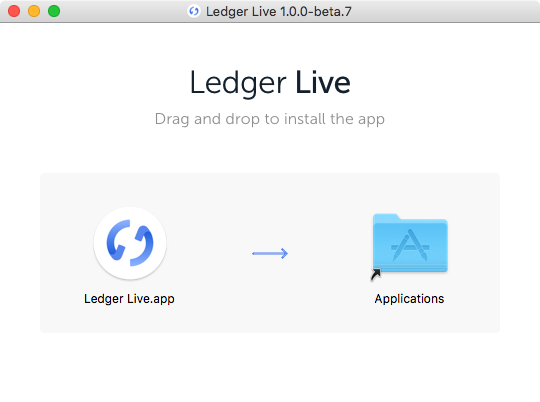
- Double-click the .dmg file you downloaded.
- Drag and drop the Ledger Live application to the Applications folder.
- Navigate to ledger.com/ledger-live/download.
- Download the Ledger Live application.
- Double-click the Ledger Live executable file you downloaded.
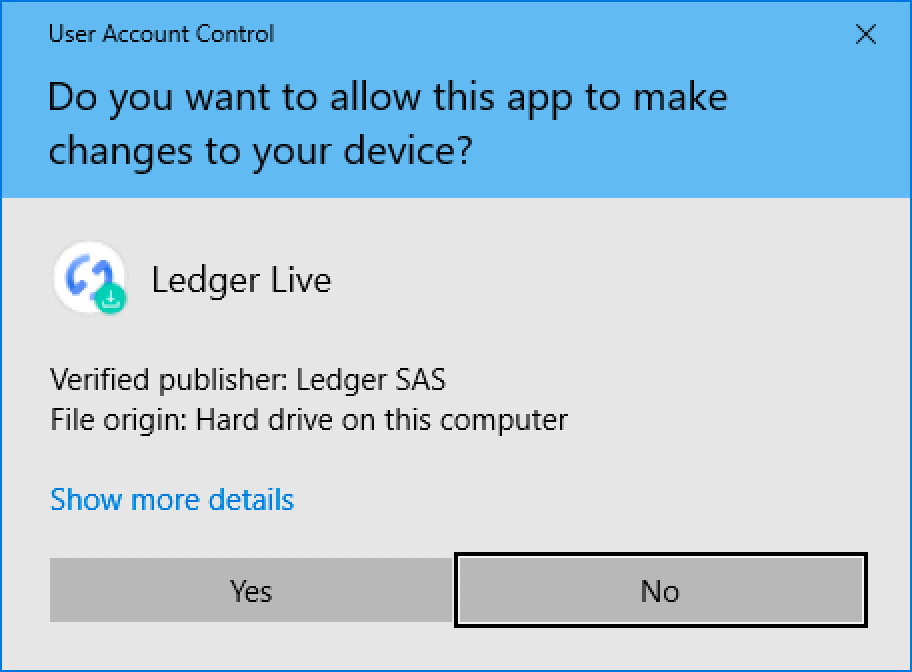
- If a warning displays, click Yes to allow the installation of Ledger Live.
You can install Ledger Live on Linux using the command line or the graphical user interface.
Using the command line
- Navigate to ledger.com/ledger-live/download.
- Download the Ledger Live AppImage.
- Make the file executable in a terminal:
- Enter the following command to automatically add the udev rules and reload udev to allow USB access to your Ledger device:
- Launch the AppImage by double-clicking on it or via your terminal.
If you get a sandboxing error, run the app with —no-sandbox:
Using the graphical user interface
- Navigate to ledger.com/ledger-live/download.
- Download the Ledger Live AppImage.
- Go to the Downloads folder.
- Right-click on the Ledger Live AppImage you downloaded and click Properties.
- Go to the Permissions tab.
- In the Execute field, tick Allow executing file as program.
Minimal requirements
- Android 8.1
- iOS 9
Instructions
Getting Ledger Live on your smartphone is easy. Simply select your platform below:
Saved searches
Use saved searches to filter your results more quickly
You signed in with another tab or window. Reload to refresh your session. You signed out in another tab or window. Reload to refresh your session. You switched accounts on another tab or window. Reload to refresh your session.
Scripts that allow you to verify and install Ledger Live on Linux
License
codemonkeysio/ledger-live-verify-and-install
Name already in use
- Local
- Codespaces
Use Git or checkout with SVN using the web URL.
Work fast with our official CLI. Learn more about the CLI.
Sign In Required
Please sign in to use Codespaces.
Launching GitHub Desktop
If nothing happens, download GitHub Desktop and try again.
Launching GitHub Desktop
If nothing happens, download GitHub Desktop and try again.
Launching Xcode
If nothing happens, download Xcode and try again.
Launching Visual Studio Code
Your codespace will open once ready.
There was a problem preparing your codespace, please try again.
Latest commit
Git stats
Files
Failed to load latest commit information.
README.md
Ledger Live Verify and Install ��
These scripts can be used to verify and install Ledger Live on Linux.
The scripts will allow you to easily verify and install another version of Ledger Live whenever needed.
Ledger Live as well as the apps you install on it are open source, but the firmware is closed source. If this is a concern for you, then take a look at Trezor which is open source or Coldcard which has viewable, editable, and verifiable source code and only supports Bitcoin.
Verify the Scripts ✔️
Before running the verification and installation scripts for Ledger Live you should verify the scripts. This will minimize the possibility of the scripts being compromised. To perform the verification you’ll need to have gnupg and curl installed which are most likely already installed on your system, but if not here’s how to install them:
Debian/Ubuntu
Debian/Ubuntu
Now you need to import the public key that signed the manifest file which you can do by running the following command:
You’re now ready to verify the manifest file. You will need to have the ledger-live-verify-and-install-manifest.sha512sum and the ledger-live-verify-and-install-manifest.sha512sum.asc files which should be in the same directory as the scripts from downloading the repository.
To verify the manifest file run the following command:
You should see the following if the verification was successful:
Unless you tell GnuPG to trust the key, you’ll see a warning similar to the following:
This warning means that the key is not certified by another third party authority. If the downloaded file was a fake, then the signature verification process would fail and you would be warned that the fingerprints don’t match.
When you get a warning like this it’s also good practice to check the key against other sources, e.g., the Code Monkeys Keybase or the Code Monkeys Blog.
You have now verified the signature of the manifest file which ensures the integrity and authenticity of the file but not the verification and installation scripts.
To verify the verification and installation scripts you’ll need to recompute the SHA512 hashes of the files, compare them with the corresponding hashes in the manifest file, and ensure they match exactly which you can do by running the following command:
If the verification was successful you should see the following output:
By completing the above steps you will have successfully verified the integrity of the verification and installation scripts, so you can now run the scripts whenever you need to verify and install another version of Ledger Live.
If for some reason you believe the scripts you have downloaded have been compromised on your machine you can always rerun the above commands again to ensure the integrity of the files.
Как установить ledger live на linux
Reddit and its partners use cookies and similar technologies to provide you with a better experience.
By accepting all cookies, you agree to our use of cookies to deliver and maintain our services and site, improve the quality of Reddit, personalize Reddit content and advertising, and measure the effectiveness of advertising.
By rejecting non-essential cookies, Reddit may still use certain cookies to ensure the proper functionality of our platform.
For more information, please see our Cookie Notice and our Privacy Policy .