How To Import Trust Wallet To Metamask?
Comprehensive Tutorial on Transferring Trust Wallet to MetaMask: Easy Steps for Smooth Wallet Import
 By Komeil Tabaar Last updated Jul 31, 2023 28
By reading the article “How To Import Trust Wallet To Metamask” published in Adaas Investment Magazine, you will get acquainted with Blockchain Wallets and how to connect Trust Wallet to Metamask wallet and its solutions in general.
Table of Contents
Trust Wallet to Metamask Wallet
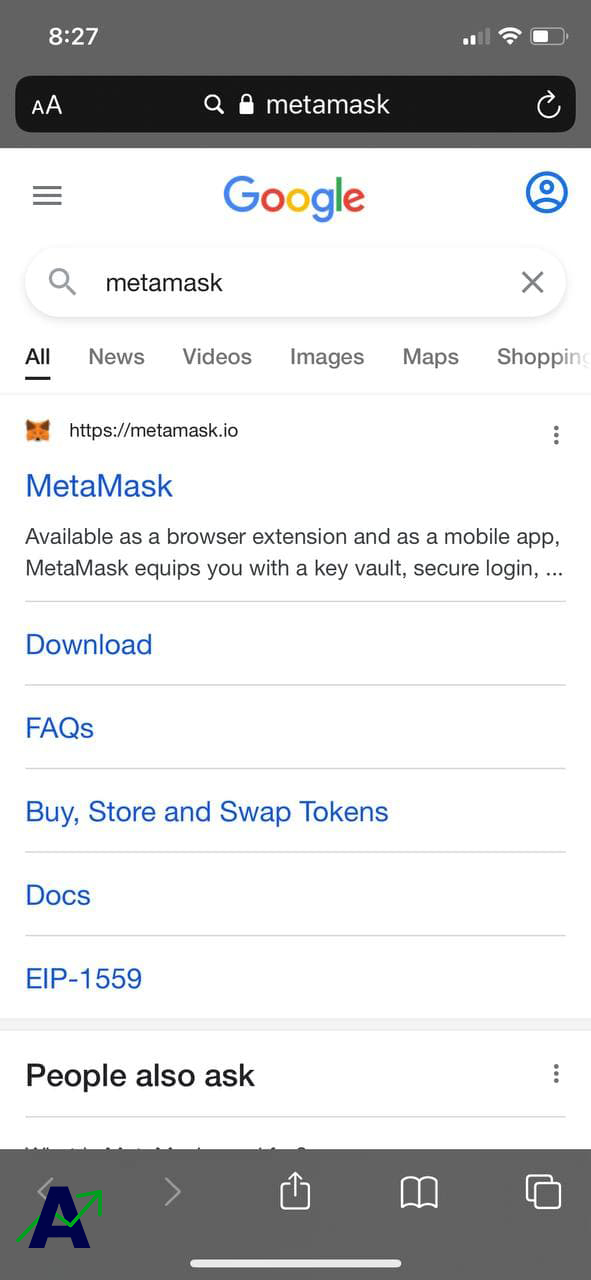
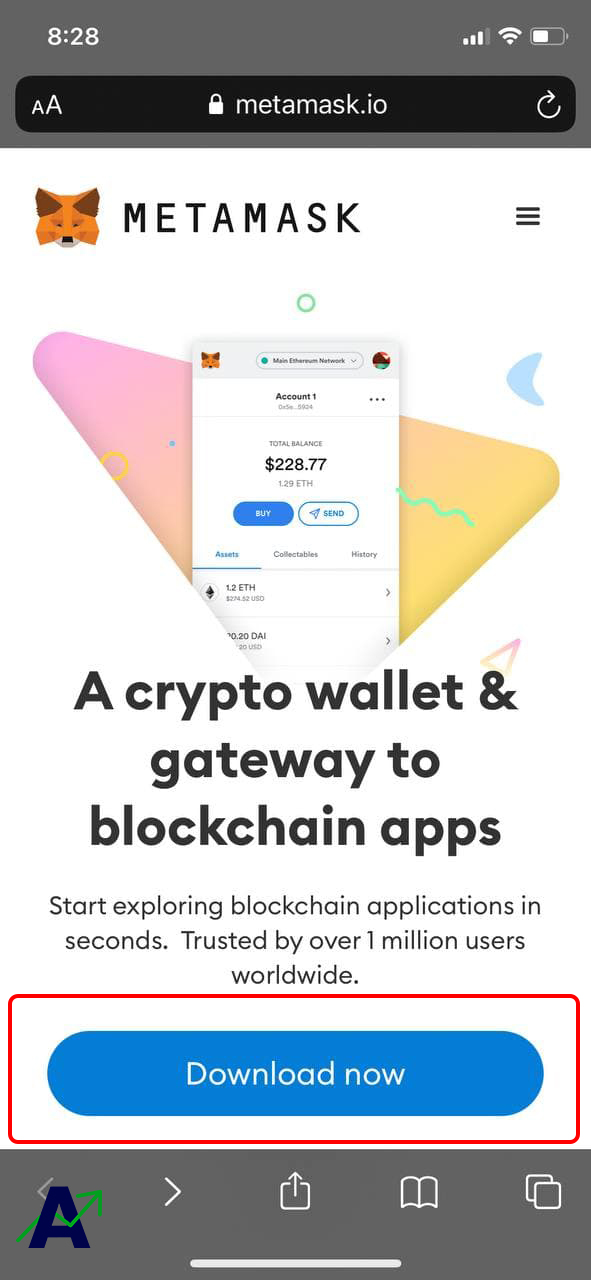
To do this, we first enter the official website of Metamask to download the original version of the wallet for our desired operating system. Metamask wallet is provided for most operating systems and browsers and all users can use it for free.
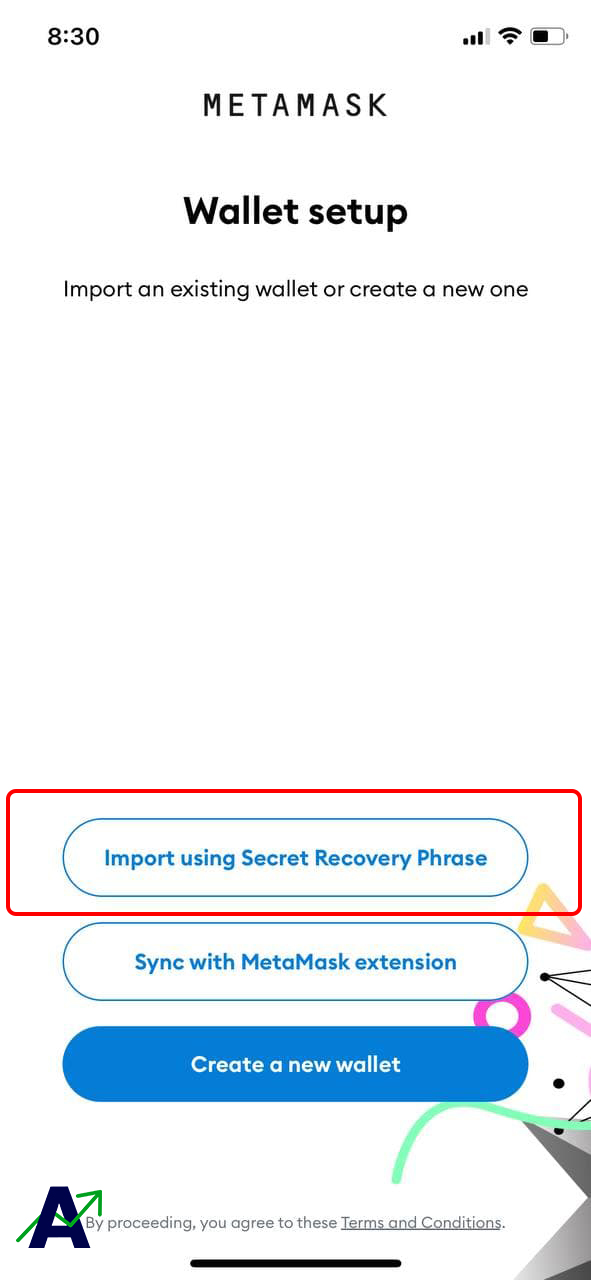
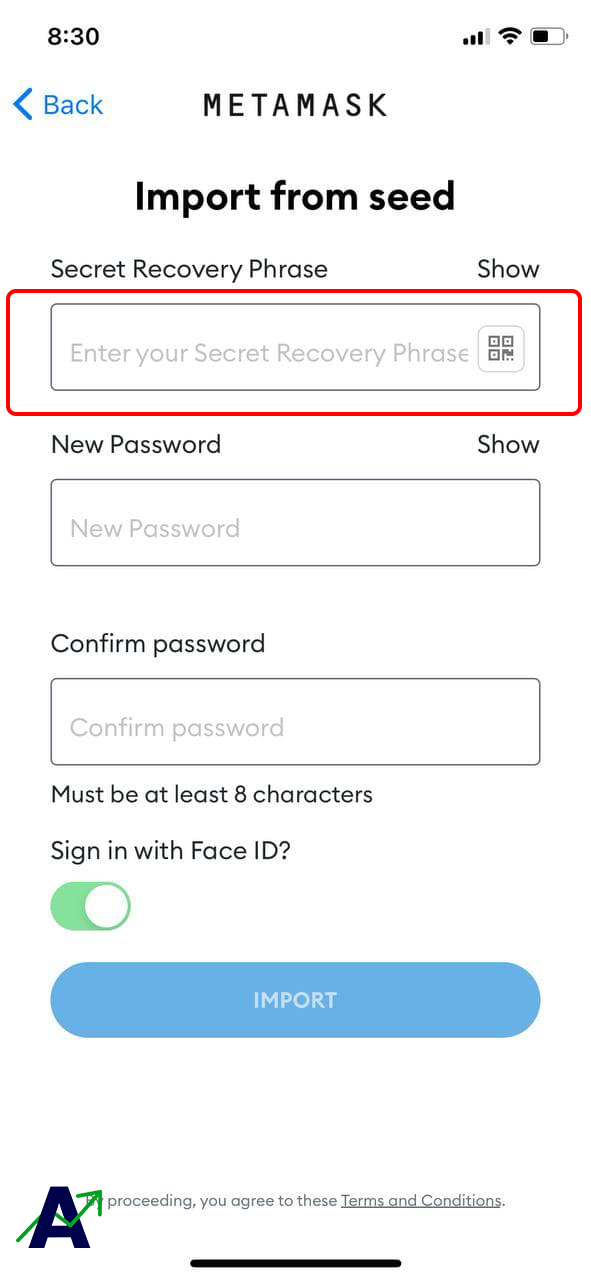
After downloading the wallet and installing it, select the Import using the secret recovery phrases option to import the Trust Wallet to Metamask.
After that, the specified field is the place where we have to enter the phrase to recover our trust wallet, and finally, by choosing a password, import the Trust Wallet to Metamask.
How to find recovery phrase in trust wallet
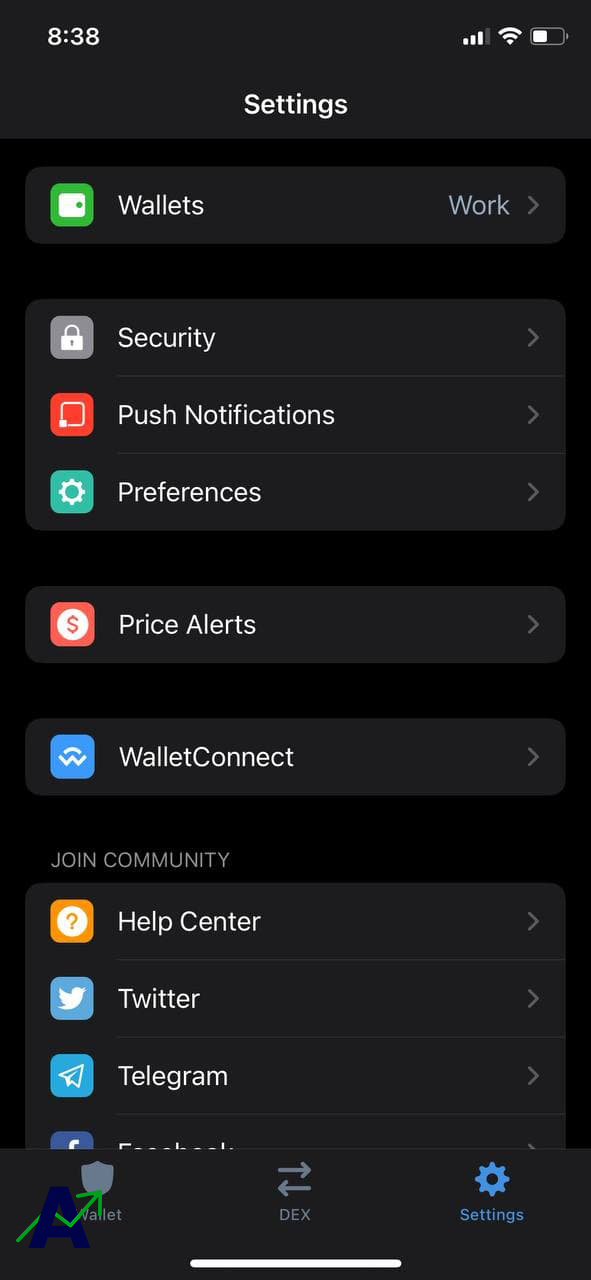
To view the recovery phrase in Trust Wallet, first select the Setting option and select the Wallets option to display your wallets.
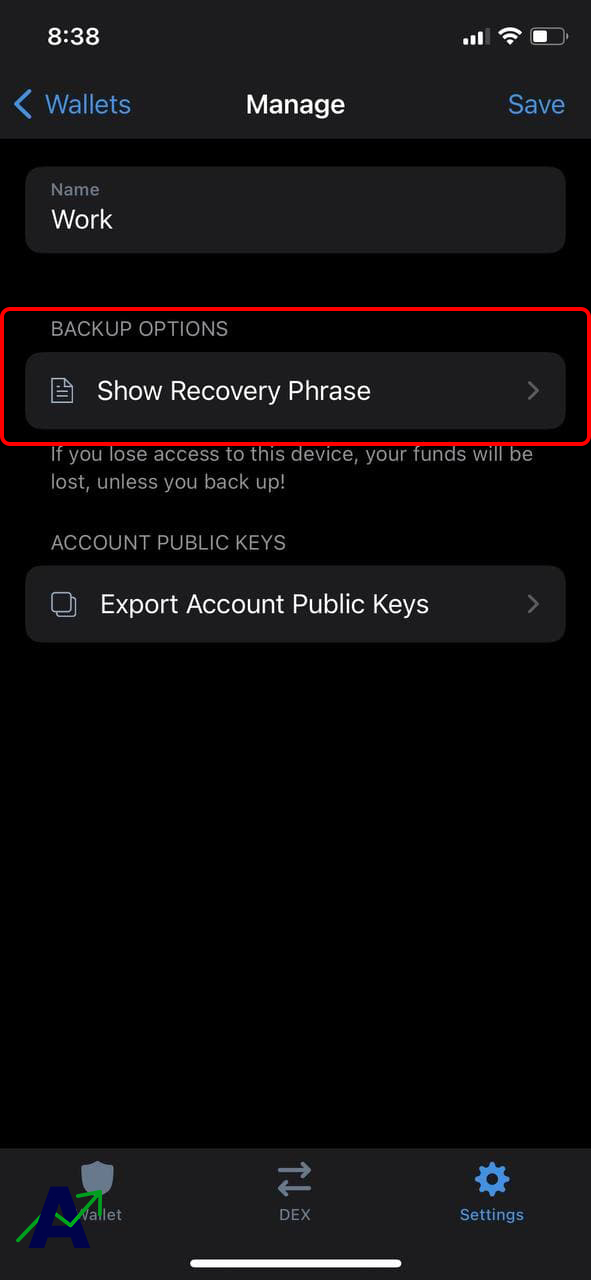
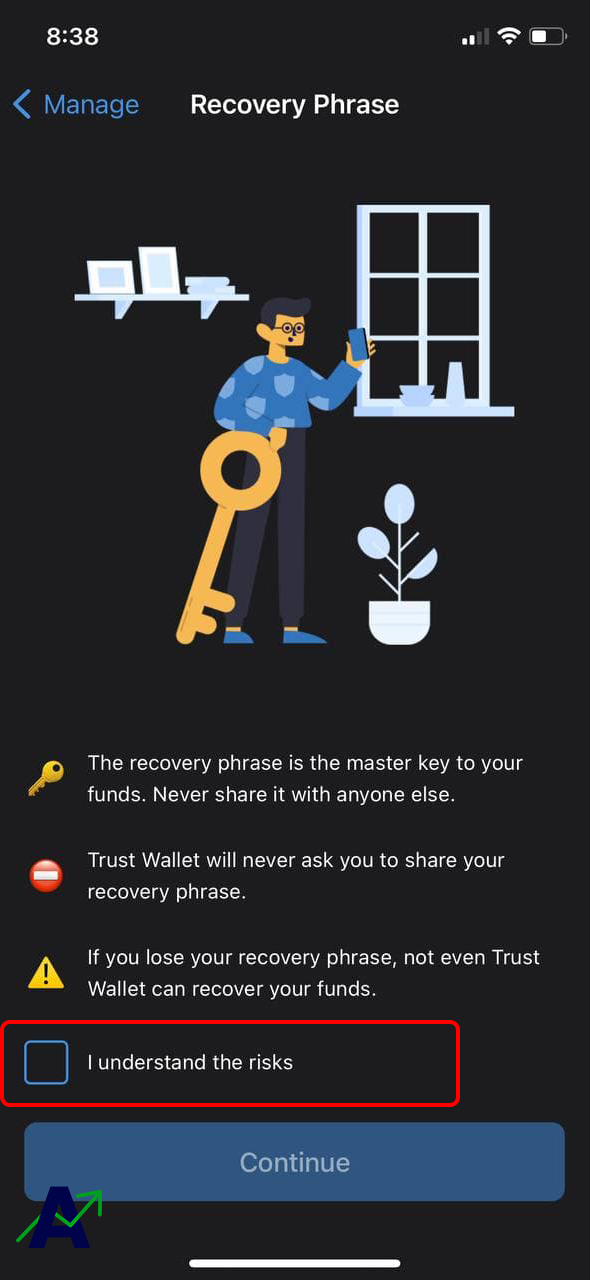
Then select the blue info mark next to the wallet to display the Show Recovery Phrase option. Finally, we click on it to enter and by clicking on I understand the risks, we see the recovery phrase and copy it.
By pasting the copied words in the Secret Recovery Phrase section and choosing the desired password, the Trust wallet successfully imports to the Metamask wallet.
What is the recovery phrase in blockchain wallets?
The recovery Phrase is a set of 12 to 24 words that are displayed to the user by the application when creating a wallet on a blockchain.
As the name implies, this phrase allows users to recover their blockchain accounts. For example, if the mobile phone in which the wallet is installed is stolen, the user can easily recover his wallet. Of course, following security tips such as a strong password for mobile phones is essential to keep their wallets safe.
This recovery phrase can also be used to access blockchain digital assets through various applications (such as this tutorial).
What is a blockchain wallet?
In a nutshell, software wallets act as an interface between the user and the blockchain to transfer user transaction commands to the blockchain.
Types of blockchain software wallets
Wallets are divided into two categories: custodial and non-custodial. Wallets that fall into the custody category are responsible for users’ assets and also have control over their assets. Non-custodial wallets, on the other hand, have no responsibility or control over the user’s assets and are practically just an interface between the user and the blockchain.
The end words
At Adaas Capital, we hope that by reading this article you will be fully immersed in how to import Trust Wallet to Metamask wallet. You can help us improve by sharing this article which is published in Adaas Investment Magazine and help optimize this article by submitting your comments.
Recovery Phrase is a set of 12 to 24 words that are displayed to the user by the application when creating a wallet on a blockchain.
In a nutshell, software wallets act as an interface between the user and the blockchain to transfer user transaction commands to the blockchain.
How To Import Trust Wallet To Metamask (Quick Guide)
Trust Wallet and Metamask are the two most popular non-custodial crypto wallets right now with both offering users full control over their crypto assets by providing the secret recovery phrase (or private key) to their wallets when the wallet is created.
One of the most important features of non-custodial crypto wallets like Trust Wallet and Metamask is the ability to effortlessly import your wallets across multiple crypto wallet apps that supports importing wallets either via private key or seed phrase.
It is common knowledge that Trust Wallet is only available on mobile (Android & iOS) and while there are some tweaks to using Trust Wallet on PC, we generally recommend installing the Metamask extension on your preferred browser and importing the wallet to Metamask to you want to access your Trust Wallet funds on PC.
Thanks to recovery phrases, importing one crypto wallet to the other is an easy procedure and in the guide, you will learn how to import Trust Wallet to Metamask quickly.
How To Import Trust Wallet To Metamask Easily (Full Guide)
Unlike Trust Wallet which is only available on mobile, the Metamask wallet is available on both desktop (via a browser extension) and a mobile app so this guide will cover the steps on how to migrate from Trust Wallet to the Metamask extension and mobile app.
Update: Trust Wallet now has an official web browser extension just like Metamask. You can download and install the extension on your browser directly on the Trust Wallet website.
How To Import Trust Wallet To Metamask Extension
Here is how you can import Trust Wallet to the Metamask browser extension on PC/Mac.
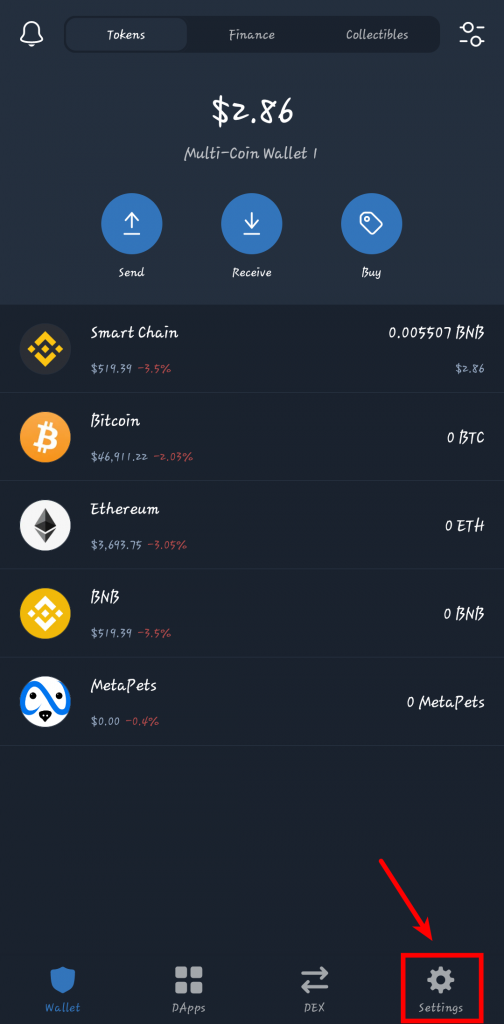
Step 1: Open the Trust Wallet app on your device and tap on [Settings].
The first step in this process is to launch the Trust Wallet app on your mobile device (Android or iOS), then tap on [Settings] in the bottom navigation menu to load the Trust Wallet Settings page.
Step 2: Next, tap on [Wallets] and select a wallet to export.
On the Trust Wallet settings page, tap on [Wallets] to show a list of all your available wallets.
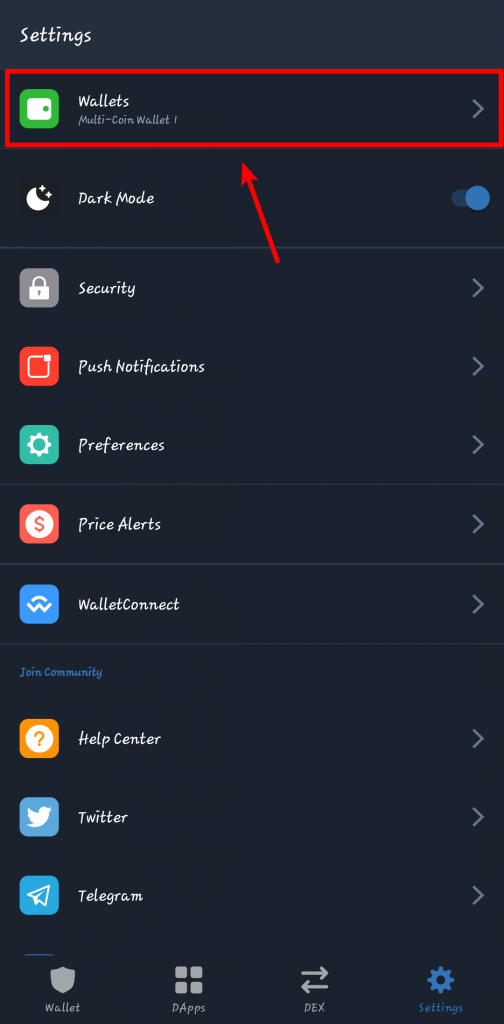
Next, select the wallet you want to export to Metamask and click on the 3 vertical dots beside it to show the details of the wallet.
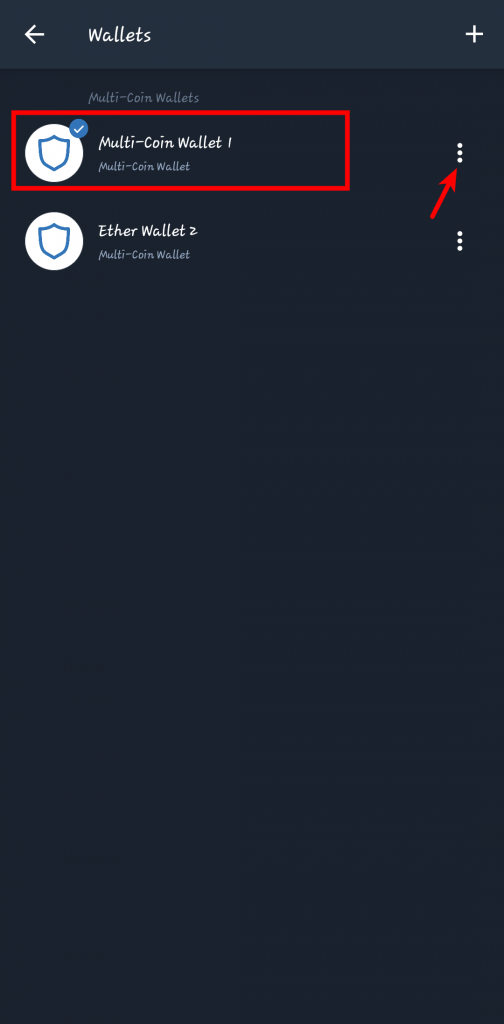
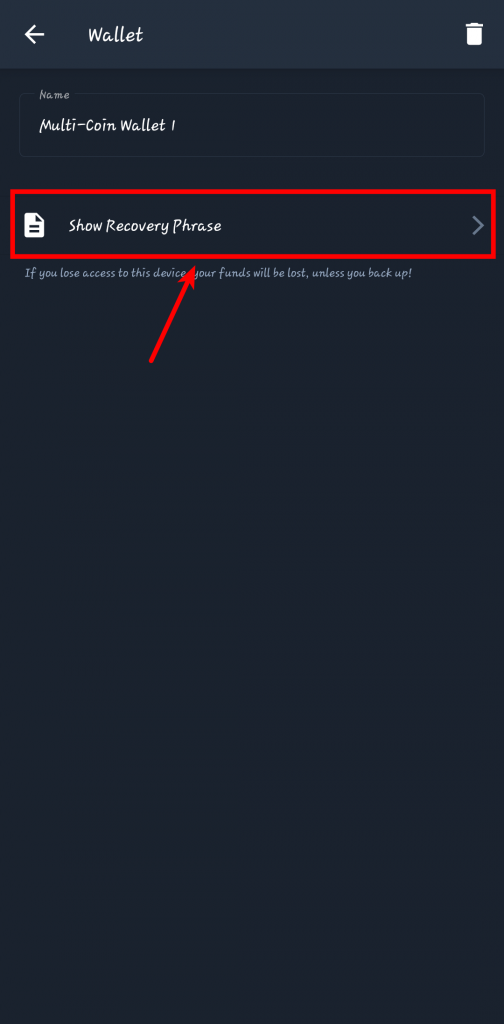
Step 3: Tap [Show Recovery Phrase].
On the page containing the details of the selected wallet, tap on [Show Recovery Phrase] to reveal the recovery phrase of the wallet.
Step 4: Check [I understand the risks] and tap on [CONTINUE] to reveal your wallet’s recovery phrase.
On the next page, Trust Wallet will warn you about the risks associated with exposing your recovery phrase, tick [I understand the risks], and hit the [CONTINUE] button.
Step 5: Tap on [COPY] to copy your recovery phrase.
Tap on [COPY] to copy your recovery phrase to the clipboard.
If you don’t have any way to share your phone’s clipboard with your PC, just write the recovery phrase down on a piece of paper or type it into your computer’s notes/notepad app then proceed with the next step.
Step 6: Install the Metamask extension on your browser and launch it.
Since you now have your Trust Wallet recovery phrase, the next step will be to install the Metamask extension on your browser.
Metamask is available on the Google Chrome Webstore, Firefox add-ons store, and the Edge add-ons store for Microsoft Edge users. If you’re using the Brave browser, you can install Metamask directly from the Chrome Webstore.
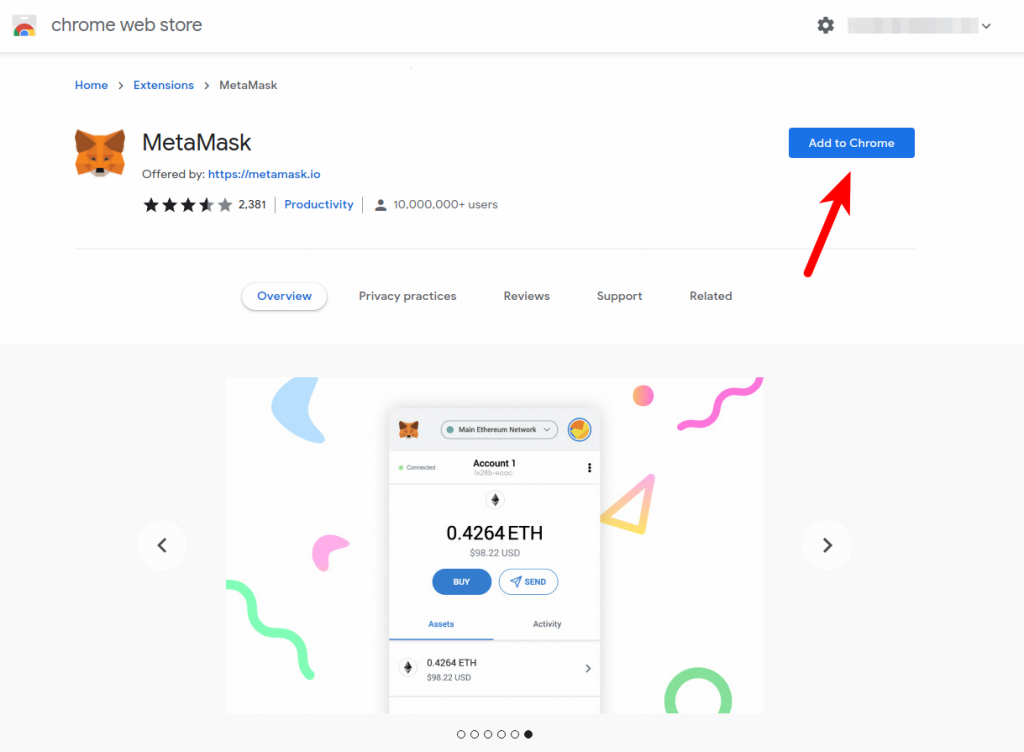
NOTE: Make sure you install Metamask ONLY from the official sources using the links above. Many fake Metamask extensions out there looking to steal your passphrase and eventually, your crypto so beware!
Once the extension is installed successfully, click on the Metamask Icon to launch Metamask on your browser. You can find the icon in your browser’s extensions panel located at the top right corner by the right of the address bar.
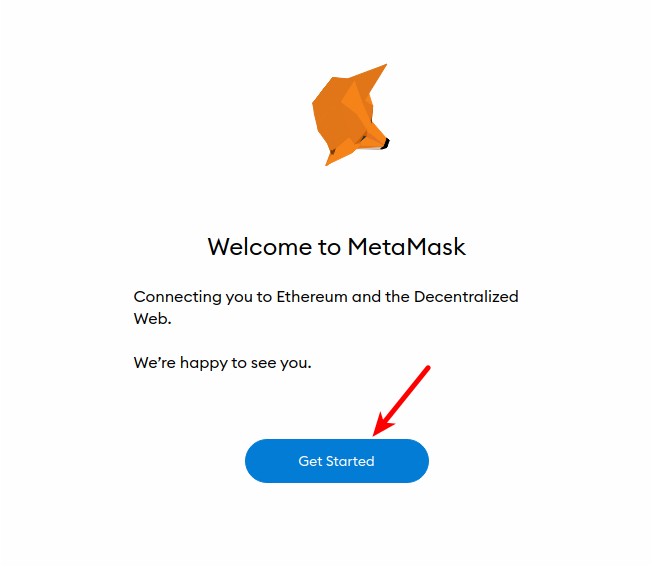
Step 7: Click on [Get Started].
On the Metamask welcome page, click on [Get Started] to start setting up your wallet.
Step 8: Click on [Import Wallet].
On the next page, click on [Import Wallet] to import the wallet on Trust Wallet to Metamask.
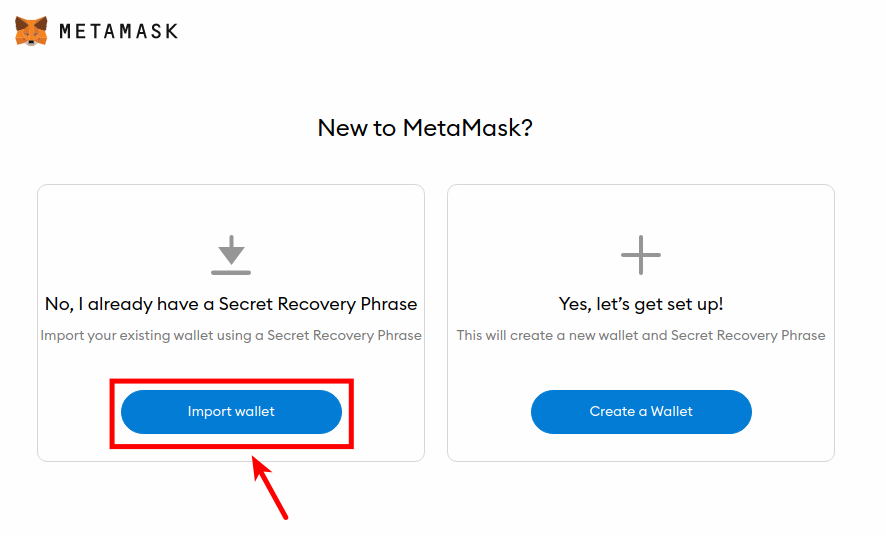
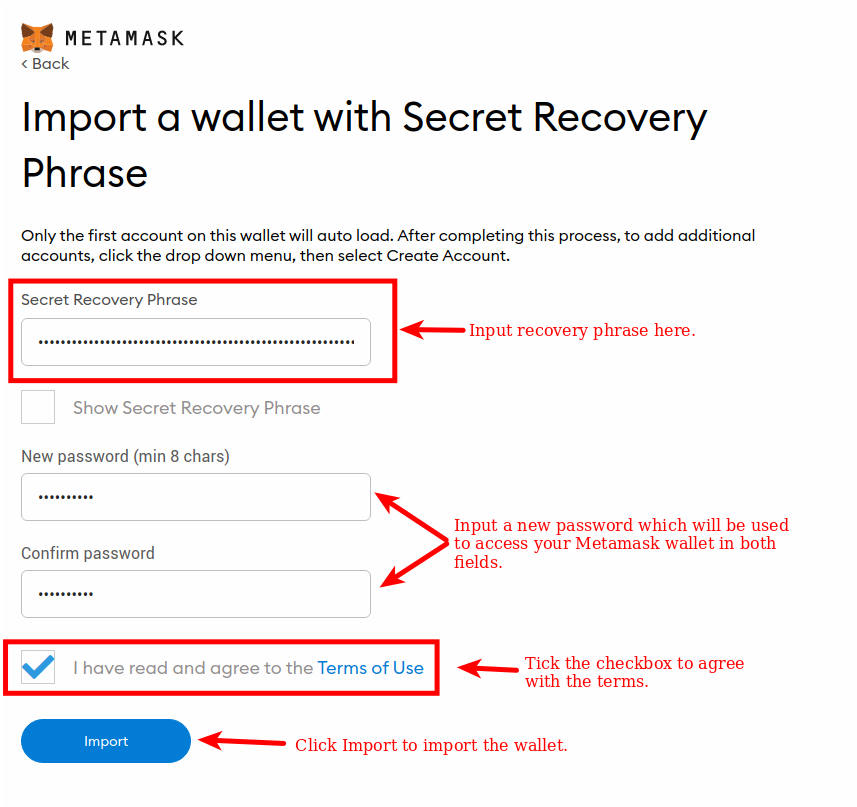
Step 9: Click [I Agree], input your recovery phrase, and set a password.
Click on [I Agree] on the next page.
Next, paste the recovery phrase you copied/noted down from Trust Wallet earlier and set a password that will be used to access your wallet on Metamask. If you wrote this down on a sheet of paper, just type it in.
Tick “Show Secret Recovery Phrase” to view the recovery phrase you typed in/pasted, then confirm if it matches the recovery phrase on Trust Wallet. You can untick this after confirming.
After that, retype the password in the “Confirm Password” section and tick “I have read and agree to the Terms of Use”.
Finally, click on [Import] to import your wallet.
Step 10: Click on [All Done] to view your wallet
Finally, click on [All Done] to view your newly imported wallet on Metamask.
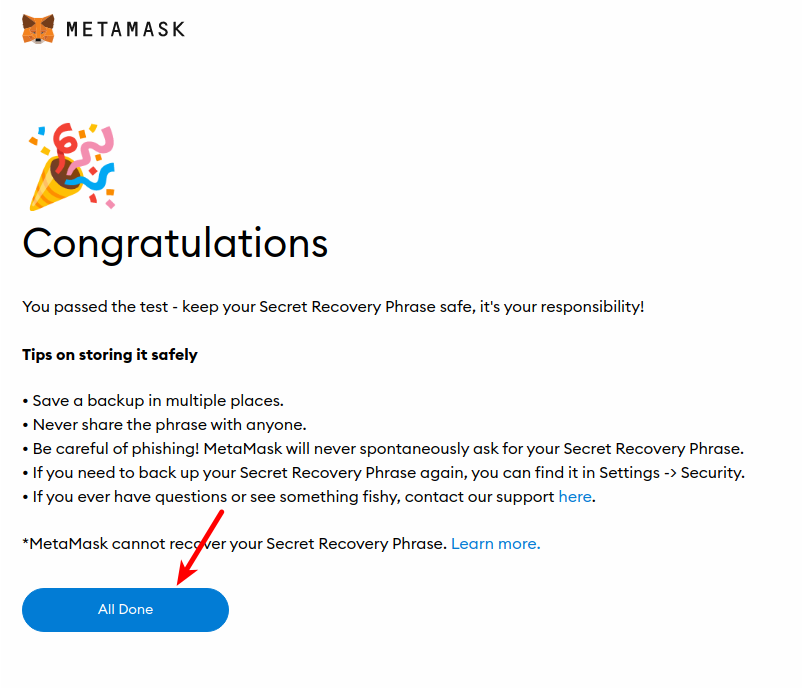
With this, you have successfully imported Trust Wallet to the Metamask extension.
How To Import Trust Wallet To Metamask Mobile App
To import Trust Wallet to the Metamask mobile app, you need to get your recovery phrase.
Please follow Steps 1 to 5 above to get your Trust Wallet recovery phrase. Once you have the recovery phrase, follow the guide below and import Trust Wallet to the Metamask Android or iOS app.
Step 1: Install the Metamask mobile app and tap on [Get Started]
Search and install the Metamask mobile app on the appropriate app store for your device (The App Store for iPhones and the Google Play Store for Android).
Once the app is installed, launch the Metamask app by tapping on the Metamask icon in the apps menu then tap on [Get Started] to start setting up your wallet.
Step 2: Select [Import using Secret Recovery Phrase]
On the Wallet Setup page, tap on [Import using Secret Recovery Phrase] to import your wallet to Metamask.
Step 3: Tap on [I Agree], paste your recovery phrase, and set a password for the wallet.
Tap on [I Agree] to accept the Metamask terms.
On the next page, paste your Trust Wallet recovery phrase in the “Secret Recovery Phrase” section then set a password that will be used to access the Metamask wallet later on.
Next, type in your password again in the “Confirm password” field and tap on [IMPORT] to import your wallet to Metamask using the set recovery phrase.
With this, you have successfully imported Trust Wallet to the Metamask mobile app.
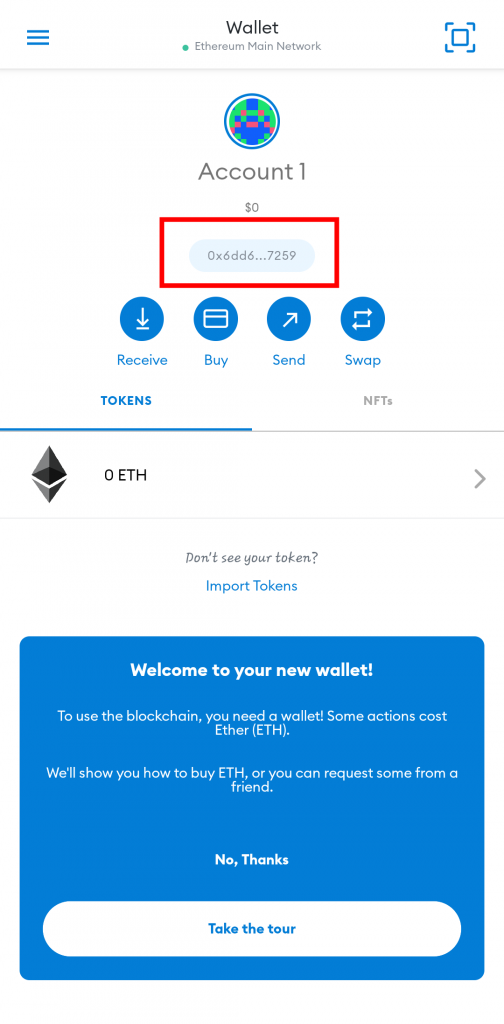 Wallet successfully imported.
Can’t Find Your BNB Balance And Other Tokens After Importing Trust Wallet To Metamask?
Had some BNB (Smart Chain) on the wallet before importing it to Metamask and you can’t find it any longer?
Well, that is because Metamask is only configured to work with the Ethereum blockchain by default so when you import a wallet with coins/tokens on other blockchains, you might not find them there.
Don’t worry though as this is easily fixable and you can get your BNB (or other tokens) back on Metamask. Fixing the issue requires you to add the Binance Smart Chain to your Metamask wallet.
To do that on the Metamask browser extension, launch the extension login into your account. Next, click on [Ethereum Mainnet] > Add Network. After that, input the details below and click [Save].
- Network Name – Binance Smart Chain
- New RPC URL – https://bsc-dataseed.binance.org/
- Chain ID – 56
- Symbol – BNB
- Block Explorer URL – https://bscscan.com
You can get a complete guide to adding the Binance Smart Chain to your Metamask Wallet (Extension & Mobile app) here.
Once you have added the Binance Smart Chain to your Metamask wallet, ensure that the Binance Smart Chain is the selected network on your wallet and you should see the BNB balance like you could on Trust Wallet.
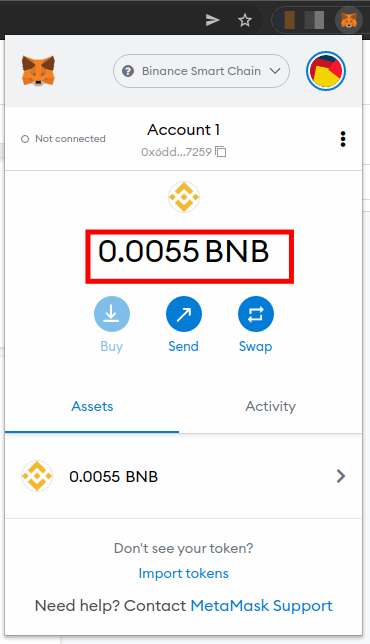
To view other tokens, you need to add each token to your Metamask wallet manually. You can check out our guide on how to add custom tokens to Metamask to learn how to do that easily.
Wrapping Up
Well, that will be it on importing Trust Wallet to Metamask.
Once you have the correct recovery phrase, you can import your wallet across multiple crypto wallet platforms and apps by just inputting the phrase and setting up a new password.
If you do not wish to use the said wallet on Trust Wallet any longer, you can delete the wallet from Trust Wallet and use Metamask as your default wallet client.
If you were searching for a way to import a wallet on Trust Wallet to either the Metamask browser extension or the Metamask mobile app for Android or iOS, we hope this guide helped you do that easily (and successfully).
How to Import Your Address from Trust Wallet to Metamask

To stake your SSTX tokens, you need to use the MetaMask browser extension. If you are holding your tokens on Trust Wallet, you can easily import your wallet to MetaMask.
Follow the next steps to import your Trust Wallet in Metamask:
1. Download MetaMask
To begin, head to the MetaMask browser extension download page (https://metamask.io/download.html). Then select your browser. For Chrome and Firefox, the link will take you to the respective browsers’ extension to download.
2. Import your Trust Wallet
Now that you have the MetaMask extension in your browser you can begin importing your Trust Wallet.
- Open the MetaMask Extension.
- Click on “Import using secret recovery phrase”.
- Write your Trust Wallet recovery phrase (just the words and leaving a space between them) and create a password for your account. Go to the “Get access to your recovery phrase in your Trust Wallet app” section below to where to find your recovery phrase.
- If you want to import more than one trust wallet, create one MetaMask account for each Trust Wallet you want to import. (*Tip: If you do this, use different passwords or if you have the private key of your Trust Wallet, you can import more than one Trust wallet in the same Metamask account.)
3. Add the Smart Chain Network to MetaMask
To be able to see your SSTX tokens that you are holding, you must first add the Smart Chain network to Metamask. By default, MetaMask is set up as an Ethereum wallet. At the top right of your screen click your account logo, then click on “settings.” Next, click “Networks” and “Add Network” in the top right corner to manually add the Binance Smart Chain network. You will have to add the network information. Fill in each section with the following information and click save:
Network Name: Smart Chain
New RPC URL: https://bsc-dataseed.binance.org/
ChainID: 56
Symbol: BNB
Block Explorer URL: https://bscscan.com
Once you save the network information and return to the main view, you’ll notice two things: the network has automatically been set to Smart Chain, and the units are no longer denominated in ETH, but in BNB.
4. Token Added
Congratulations! You have successfully added our token to your MetaMask wallet! Setting up your MetaMask wallet via a browser or mobile device is pretty much the same. If you set up your wallet on a browser extension, once you download the app on your iOS or Android device just select “Sync with MetaMask extension” and follow the instructions to add your wallet to your mobile app.
Get access to your recovery phrase in your Trust Wallet app
Here’s how you can access your recovery phrase in your Trust Wallet app:
- To find your recovery phrase, open your Trust Wallet app and go to ‘Settings’.
- On the ‘Settings’ screen, tap on ‘Wallets.’ Your screen will display the different wallets that you currently have on Trust Wallet.
- If you have multiple wallets, tap on the wallet that you want to find the recovery phrase for, and tap on the ‘i’ (information) symbol to open it.
- Proceed to tap on the ‘Show Recovery Phrase’ for your wallet.
Your recovery phrase will be displayed on your screen. You can proceed to copy it in the order it is in, and store it somewhere safe to avoid losing it.
Как импортировать Trust Wallet в MetaMask: пошаговое руководство
Trust Wallet и MetaMask — два лучших криптовалютных кошелька, не связанных с хранением, в криптоиндустрии. Оба кошелька поддерживают стандарты токенов ERC-20 и BEP2, которые используются в сетях Ethereum и BNB Chain соответственно. Оба также поддерживают невзаимные токены, или NFT.
MetaMask и Trust Wallet известны простотой использования благодаря своим пользовательским интерфейсам, удобным для начинающих, поддерживающим тысячи криптоактивов для пользователя и позволяющим интегрировать различные сети. Как говорится, вот полное руководство о том, как импортировать ваш Trust Wallet в MetaMask, охватывающее основные шаги.
Как импортировать Trust Wallet в MetaMask?
Следующие шаги научат, как импортировать Trust Wallet в настольную версию MetaMask:
- Первым шагом является вход в свою учетную запись Trust Wallet и поиск опции настроек в нижнем меню.
- Далее выберите опцию Кошельки — вы увидите список всех ваших доступных кошельков.
- Нажмите на кошелек, который вы хотите импортировать.
- Для этого просто нажмите на три вертикальные точки рядом с кошельком и нажмите кнопку "Показать фразу восстановления", чтобы отобразить соответствующую фразу восстановления кошелька.
- Примите предупреждения Trust Wallet о потенциальных рисках раскрытия вашей фразы восстановления. Нажмите "Я понимаю риск", а затем "ПРОДОЛЖИТЬ".
- Затем скопируйте фразу восстановления в буфер обмена.
После выполнения этих шагов нам нужно загрузить и установить MetaMask. Мы можем найти приложение в Google Chrome Webstore или Firefox add-ons store.
Примечание по безопасности: обязательно дважды проверьте легитимность сайта перед загрузкой чего-либо. Мошенники становятся экспертами в обмане людей с помощью чрезвычайно хорошо разработанных фишинговых веб-сайтов. Перейдите по этой ссылке, чтобы загрузить законное расширение MetaMask.